Validated Exposure
Advanced Network Exposure identifies resources that are reachable from the internet by analyzing your cloud network configuration, including security groups, firewall rules, routing tables and open ports.
For each resource that Advanced Network Exposure flags as reachable, Validated Exposure probes the endpoint to verify that a service is responding, identifies the application running on it and determines whether the service requires authentication.
This gives you a confirmed, application-aware view of your external attack surface, so you can prioritize endpoints that are genuinely open rather than paths that the network configuration permits but that no service answers.
Validated Exposure is off by default. To turn it on, see Enable Validated Exposure.
Prerequisites
- The account is connected to Sysdig Secure with the foundational features, so Advanced Network Exposure is active.
- You can edit the cloud account in Sysdig Secure. Validated Exposure needs no separate role.
- Sysdig’s scanner IP addresses are on your allow lists. See Allow Scanner Traffic.
Supported Environments
| Category | Supported |
|---|---|
| Cloud providers | AWS, GCP, Azure |
| Deployment | Sysdig SaaS, in the AWS and GCP regions listed in SaaS Regions and IP Ranges |
| Resource types | Compute hosts |
| Protocols | TCP, UDP |
| IP versions | IPv4 |
Limitations
- Validation doesn’t cover Kubernetes workloads.
- Validation covers IPv4 endpoints only. It doesn’t support IPv6.
- Validation is scan-based. It runs after Advanced Network Exposure computes the exposure paths, and then once a week. Results reflect the most recent scan rather than real-time state.
- Validation covers every internet-reachable compute host in an account where it’s on. You can’t exclude specific hosts or IP ranges, and the member accounts of an organization follow the management account’s setting.
- Validated Exposure isn’t available for on-premises deployments.
Enable Validated Exposure
This section tells you how to turn on Validated Exposure for your AWS, GCP and Azure cloud accounts in Sysdig Secure, from the UI, Terraform or the sysdig-onboarding skill.
Advanced Network Exposure is automatically enabled when you connect your cloud accounts to Sysdig Secure with Cloud Security Posture Management (CSPM) capabilities. The configuration-based analysis works by analyzing the network configurations and metadata from your cloud providers without requiring additional agent installation.
Validated Exposure adds active verification on top of that analysis: Sysdig probes the resources that the configuration analysis finds exposed, to confirm that they’re reachable from the internet.
You turn on Validated Exposure yourself, for each cloud account. It’s off until you turn it on. It’s part of the existing Secure Cloud Security Posture Management (CSPM) and Attack Surface Management packaging, the same offering that includes Advanced Network Exposure, and doesn’t require a separate subscription.
Important: Turning on Validated Exposure for a cloud account authorizes Sysdig to actively probe the account’s internet-facing endpoints from Sysdig scanner IP addresses. When you turn it on for an organization, this covers every member account.
Enable Validated Exposure for a Connected Account
In Sysdig Secure, select Integrations > Environments, and then select AWS, GCP or Azure.
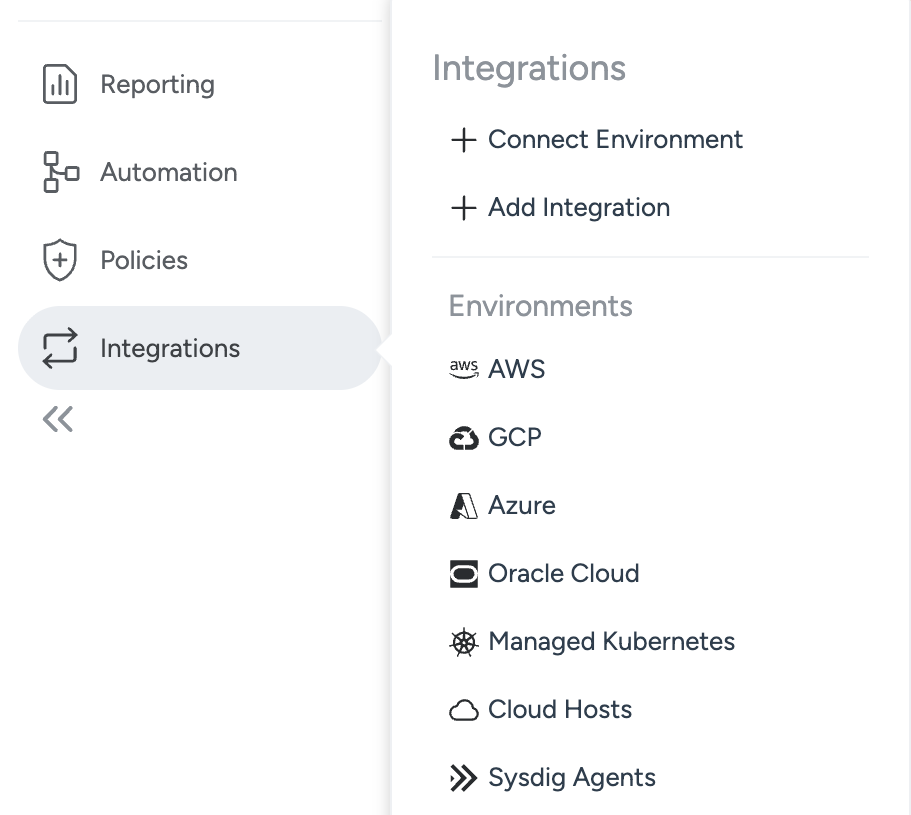
Select the account to open its details panel.
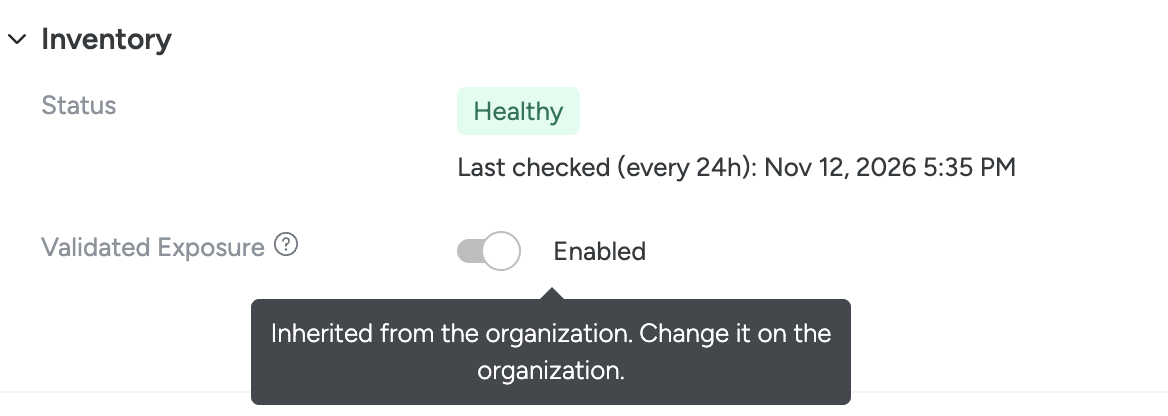
In the Inventory section, turn on the Validated Exposure toggle.
The toggle reads Enabled, and the message Validated Exposure successfully enabled. appears. To turn Validated Exposure off, use the same toggle. Turning it on or off doesn’t change any other feature on the account.
Enable Validated Exposure for an Organization
If you connected an organization (an AWS organization, a GCP organization or an Azure tenant), Sysdig applies the management account’s Validated Exposure setting to every member account.
- Open the details panel of the organization’s management account, as in Enable Validated Exposure for a Connected Account.
- Turn on the Validated Exposure toggle.
Every member account follows the management account’s setting within a few minutes.
On a member account, the toggle is read-only. It shows the organization’s setting, and its tooltip reads Inherited from the organization. Change it on the organization. You can’t turn Validated Exposure on or off for a single member account.
Enable Validated Exposure When You Connect an Account
When you connect an AWS, GCP or Azure account or organization with the onboarding wizard, the Customize Your Coverage step (Coverage Details for AWS GovCloud) lists Validated Exposure under Foundational. Turn on its toggle to include it. It’s off by default.
- CloudFormation (AWS): the wizard saves your choice when it creates the account in Sysdig, at the Launch Stack and Complete the Onboarding step. The CloudFormation template itself doesn’t change.
- Terraform: the wizard writes your choice into the configuration it generates. See Enable Validated Exposure with Terraform.
For an organization, your choice applies to every member account. After onboarding, you change the setting in the account’s details panel.
Enable Validated Exposure with Terraform
The Terraform configuration that the onboarding wizard generates sets Validated Exposure with the POSTURE_VALIDATED_EXPOSURE_ENABLED flag on the Posture feature resource, FEATURE_SECURE_CONFIG_POSTURE. For an AWS account:
resource "sysdig_secure_cloud_auth_account_feature" "config_posture" {
  account_id = module.onboarding.sysdig_secure_account_id
  type       = "FEATURE_SECURE_CONFIG_POSTURE"
  enabled    = true
  components = [module.config-posture.config_posture_component_id]
  depends_on = [module.config-posture]
  flags = {"POSTURE_VALIDATED_EXPOSURE_ENABLED": "true"}
  lifecycle {
    ignore_changes = [flags]
  }
}
GCP and Azure configurations use the same flags and lifecycle arguments on their config_posture resource. Set the value to the string "true" or "false". For an organization, set it on the management account’s Posture feature, and it applies to every member account.
Terraform sets the flag when it creates the Posture feature. After onboarding, the toggle in the account’s details panel controls the setting: to turn Validated Exposure on or off for an account that already exists, use the toggle.
Note: If the Posture feature resource in your configuration has no lifecycle { ignore_changes = [flags] } block, the next terraform apply turns Validated Exposure off again after you turn it on in Sysdig. Add the block before your next apply. Also use version 3.11.2 or later of the sysdiglabs/sysdig provider: earlier versions drop the account’s feature flags when they update the sysdig_secure_cloud_auth_account resource. After you upgrade, review the first terraform plan before you apply it: it recreates any feature that was deleted outside Terraform.
Enable Validated Exposure with the sysdig-onboarding Skill
The sysdig-onboarding skill asks whether to turn on Validated Exposure when it onboards an AWS, GCP or Azure account or organization. It stays off unless you choose Enable Validated Exposure. The skill writes your answer into the Terraform configuration it generates, with the same flag and lifecycle block, and requires version 3.11.2 or later of the sysdiglabs/sysdig provider.
When the skill adds features to an account you already connected, it doesn’t change Validated Exposure. Use the toggle in the account’s details panel.
Troubleshooting
If you run into problems enabling Validated Exposure, use the sections below to perform troubleshooting.
Allow Scanner Traffic
Your security tooling can detect Sysdig’s probes as port scanning and flag them as potentially malicious. Common security systems that may flag or block them include:
- Firewalls: May interpret repeated connection attempts as port scanning attacks
- Web Application Firewalls (WAF): Can identify scanning patterns and block the source IPs
- Intrusion Detection/Prevention Systems (IDS/IPS): May alert on or block scanning activity
- Cloud-native security services: Such as AWS GuardDuty, Microsoft Defender for Cloud or Google Cloud Security Command Center
To keep validation working, and to keep your tools from flagging Sysdig’s scanner as a malicious actor, add Sysdig’s scanner IP addresses to your allow lists. The IP addresses for each Sysdig region are on the SaaS Regions and IP Ranges page.
Identify Network Scanner Activity
To help you distinguish Sysdig’s scanning from potential threats, the network scanner adds a custom header to every HTTP request it sends. You can use it to identify and allow these requests in your logs and security systems:
- Header Name:
X-Sysdig-CSPM - Header Value:
NetworkScanner/1.0
You can use this header to:
- Configure your WAF or firewall rules to allow traffic from Sysdig’s network scanner
- Filter and identify Sysdig scanning activity in your web server and application logs
- Create exceptions in your IDS/IPS systems to prevent false positive alerts
For example, you can configure your web application firewall to recognize requests with the X-Sysdig-CSPM: NetworkScanner/1.0 header as legitimate security scanning from Sysdig and allow them without triggering alerts.
Validation Capabilities
Validated Exposure enriches each modeled exposure with three capabilities.
Active Reachability Validation
Confirms that a live service is responding on the open port, rather than relying on the network configuration alone. This separates genuinely reachable services from configuration paths that no service answers.
Application Fingerprinting
Identifies the application running on the endpoint, and its version when available, so you can distinguish a generic open port from a specific service such as a database or a CI tool. Each fingerprint includes a confidence level.
Authentication Detection
Classifies each endpoint by whether it requires authentication, so you can distinguish a login-gated service from one that is genuinely open and prioritize unprotected exposures first. Each endpoint is labeled Authenticated, Likely Authenticated, Likely Unauthenticated, Unauthenticated or Unknown Auth, where a Likely qualifier indicates a lower-confidence result.
Note: When the probe cannot determine the application or the authentication state, the endpoint is reported with an unknown application or Unknown Auth state rather than omitted from the findings.
For a resource with multiple open ports, each detected application is listed with its own fingerprint, authentication status and confidence:
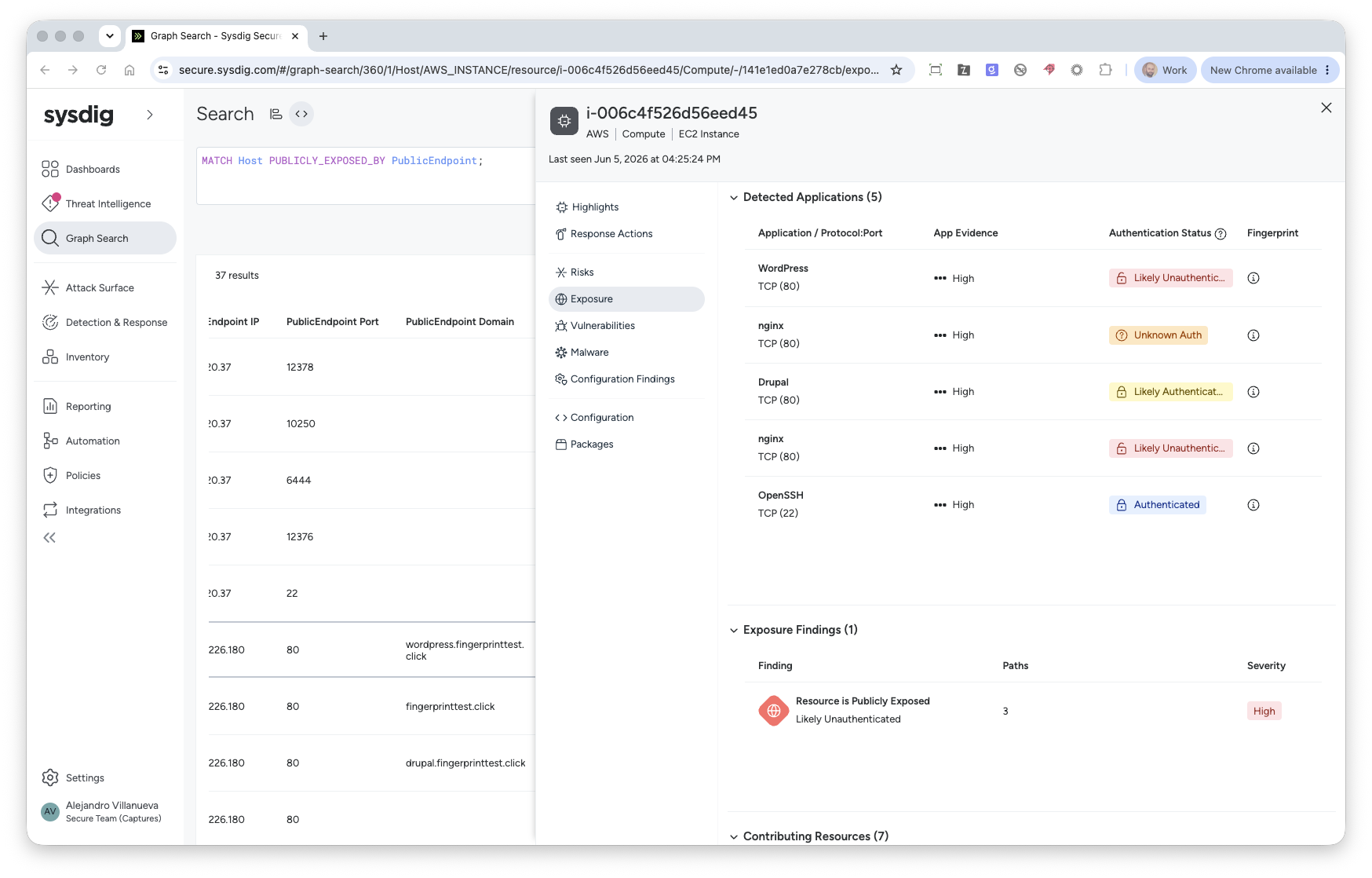
The application and authentication results, along with their confidence levels, are included in the validated exposure data for each resource. For the full field reference and an example, see Validated Exposure Information.
What Validated Exposure Scans
When Validated Exposure is on, Sysdig’s network scanner probes the compute hosts that Advanced Network Exposure finds reachable from the internet, on their public IPv4 addresses, from Sysdig scanner IP addresses. On each open TCP or UDP port, it checks whether a service answers, identifies the application and checks whether the service requires authentication.
Scan timing:
- The first scan starts about 5 minutes after you turn Validated Exposure on.
- For an account you connect with Validated Exposure already on, the first scan starts about 6 hours after onboarding, so that Sysdig discovers the account’s resources first.
- After the first scan, Sysdig scans the account once a week.
Times are approximate. Validated results appear as each scan completes.
When you turn Validated Exposure off, or remove the account from Sysdig, Sysdig stops scanning it. Existing validated results stay visible. Each one disappears after 7 days without a new scan to reconfirm it, or earlier if the resource itself goes away.
Exposure Status
The distinction between modeled and validated exposure is reflected in the exposure status of a resource:
- Exposed: The resource is reachable from the internet based on network configuration analysis. This status is modeled and is not validated through port scanning.
- Publicly Exposed: The resource has been confirmed reachable through active port scanning.
For how these statuses appear in your Inventory, see Exposure Status Icons.
View Validated Exposure Results
You can review validated exposure for an individual resource or query validated endpoints across your infrastructure.
Review a Single Resource
In Inventory > All Resources, open the resource and select Exposure to see its validation results. The Exposure Validation panel summarizes the exposure finding, authentication state, the last validation time and the validated protocols and ports, alongside the network path that makes the resource reachable.
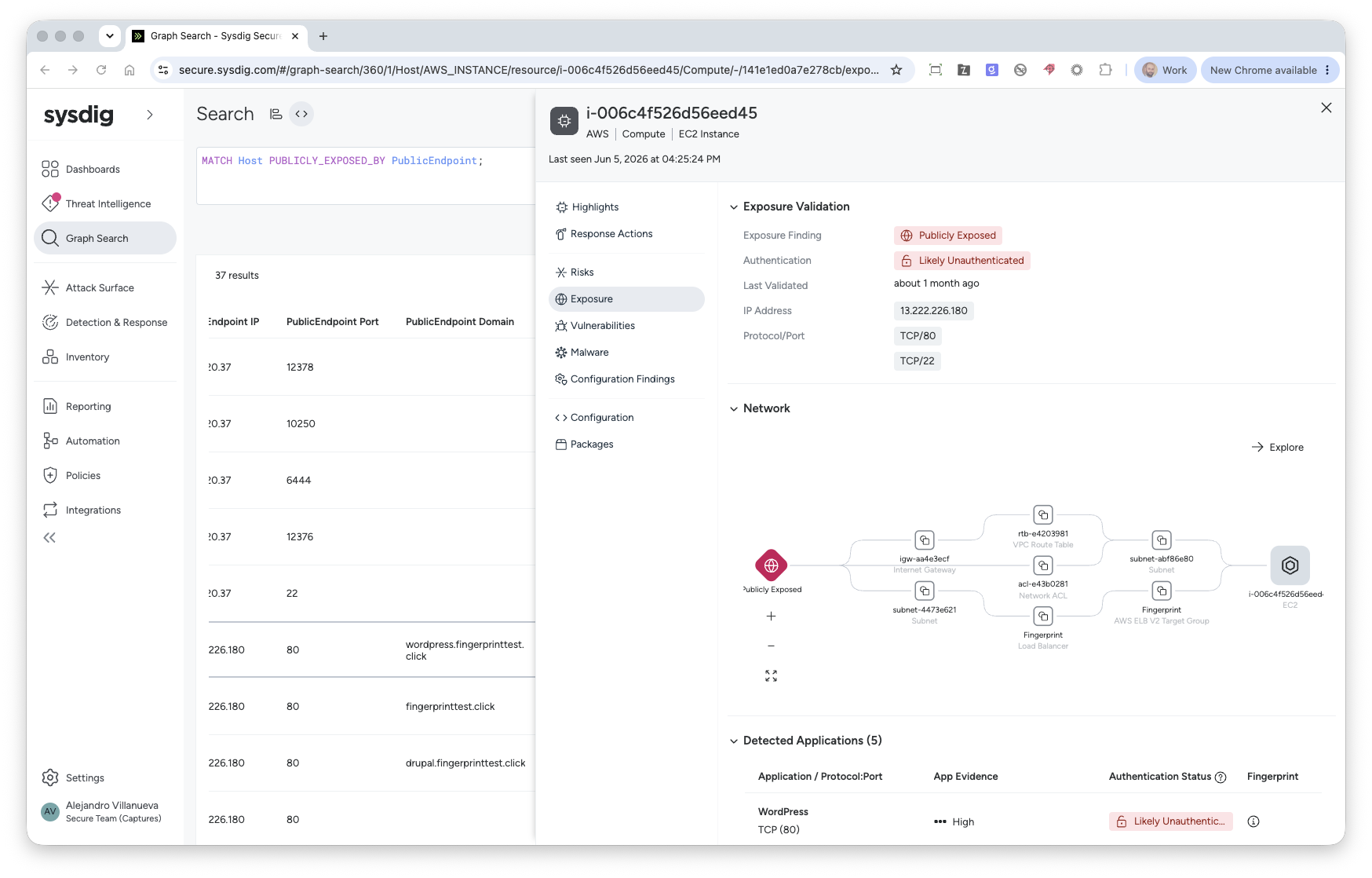
The same view lists every detected application and the contributing resources in the exposure path. For details on these sections, see Viewing Exposure Information in Inventory.
Query Validated Endpoints with Graph Search
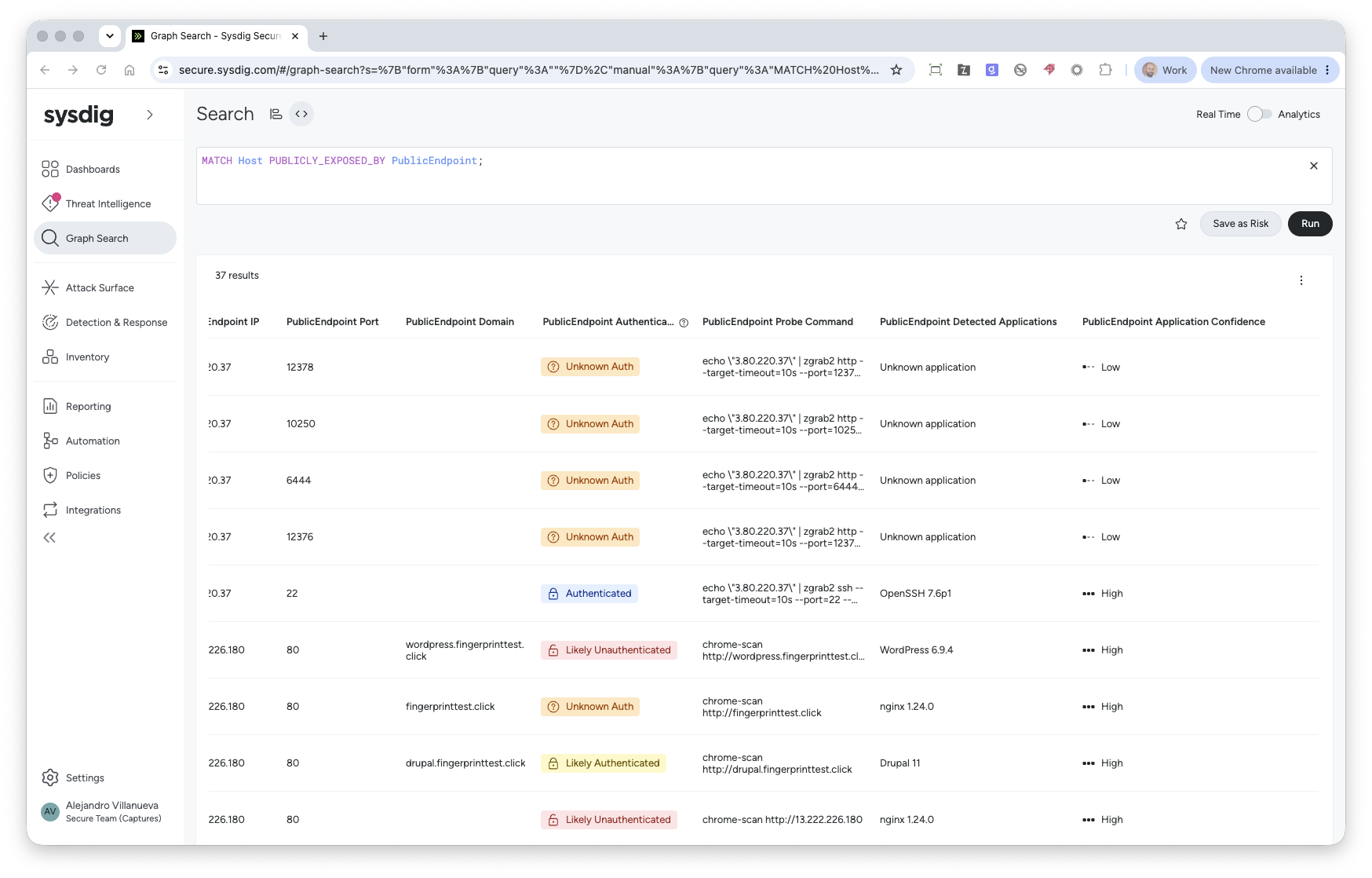
To review validated endpoints across your infrastructure, use Graph Search with SysQL. The PUBLICLY_EXPOSED_BY relationship returns hosts that have validated exposure, along with each endpoint’s protocol, port, detected application, authentication status and confidence:
MATCH Host PUBLICLY_EXPOSED_BY PublicEndpoint;
For more about SysQL syntax, see the SysQL Reference Library and Querying Exposure Results with Inventory Search.
