Risk Exceptions
Risk Exceptions are scoped, documented, and time-bound to ensure they are reviewed regularly.
Create a Risk Exception
- Log in to Sysdig Secure and navigate to Attack Surface > Risks.
- Select a Risk Definition, then select a Risk Finding.
- Click Create Exception.
The Create Exception window appears.
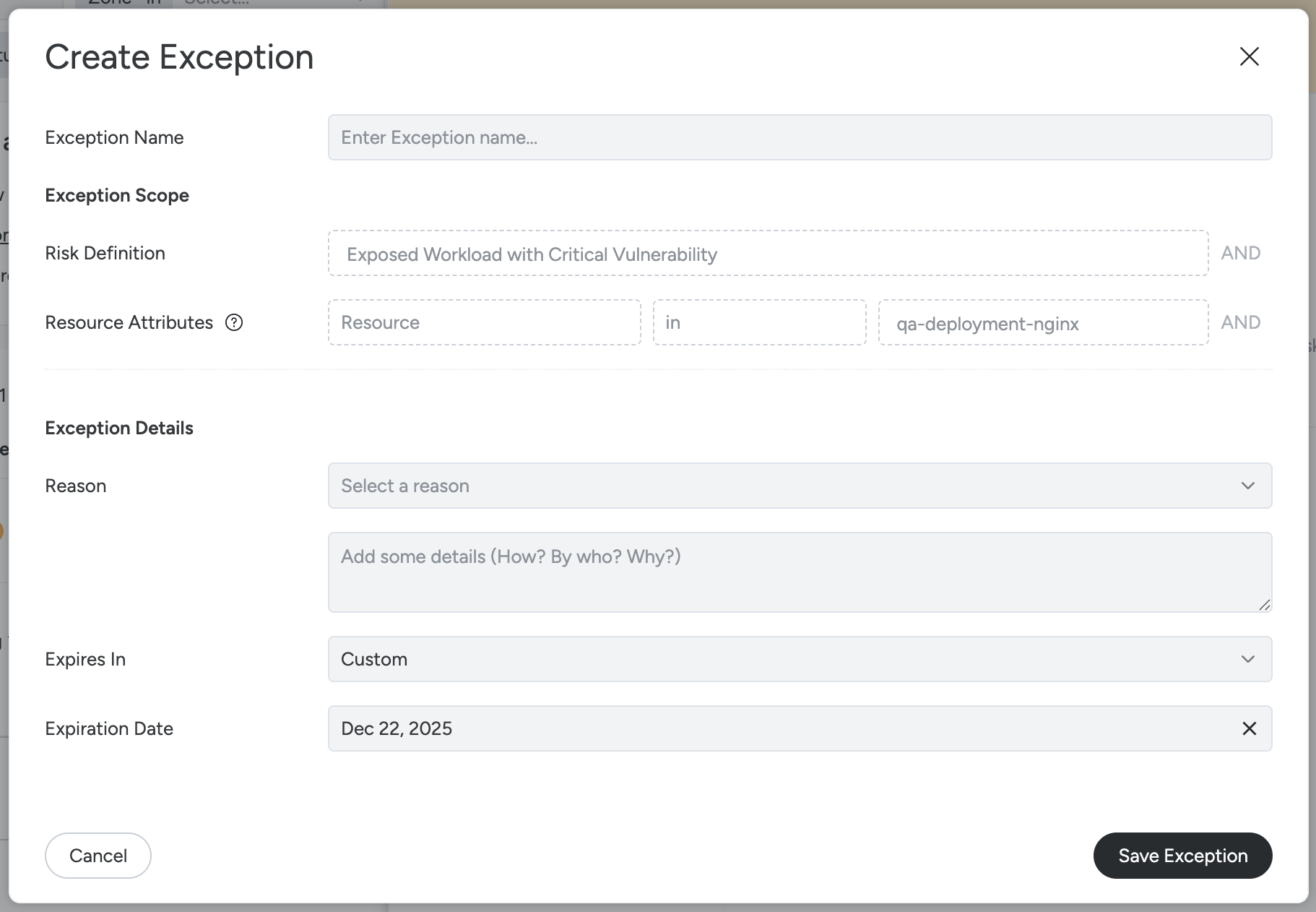
- Complete the following fields:
- Exception Name: Enter a descriptive name to identify the exception.
- Exception Scope: Defines what the exception applies to.
- Risk Definition is prefilled based on the selected risk.
- Resource Attributes specify the affected resource scope.
- Reason: Select the reason for creating the exception:
- Risk Owned
- Risk Transferred
- Risk Avoided
- Risk Mitigated
- Risk Not Relevant
- Custom
- Expires In: Define how long the exception remains active.
- Expiration Date: Set the date when the exception expires. After the expiration date, the risk is evaluated again.
- Click Save Exception.
The exception is applied to the selected Risk Finding and is visible in the Exceptions tab of the Risk Details panel.
Review and Manage Risk Exceptions
To review or manage existing Risk Exceptions:
- Open a Risk Finding.
- Select the Exceptions tab.
From the exception details, you can:
- Edit the Reason or Expiration date
- Revoke the exception to include the risk in evaluation again
Risk Exceptions apply only to the Risks workspace. This workflow replaces Accepted Risk for Risks but does not change terminology in other Sysdig modules.
View Risk Exceptions
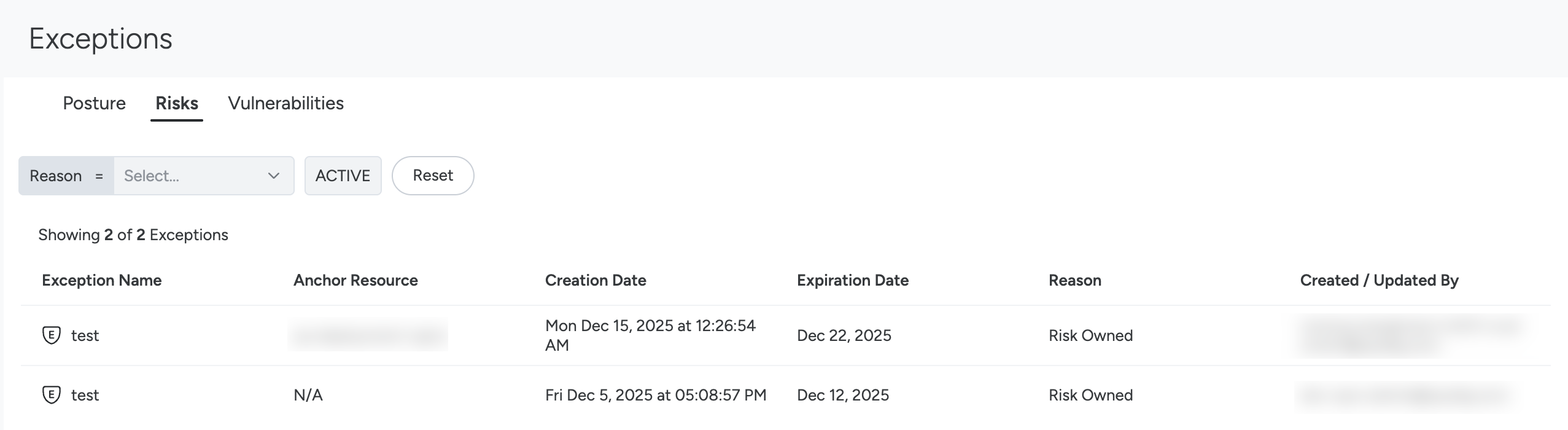
The Attack Surface > Exceptions page provides a centralized view of all risk exceptions created in the Risks workspace. Use this page to review active exceptions, track expiration dates, and understand why specific risks are excluded from evaluation.
To access this page:
- Log in to Sysdig Secure.
- Navigate to Attack Surface > Exceptions.
- Select the Risks tab.
The table displays the following information:
- Exception Name: The name assigned when the exception was created.
- Anchor Resource: The primary resource associated with the exception. If the exception is not tied to a specific anchor resource, this value is shown as
N/A. - Creation Date: The date and time when the exception was created.
- Expiration Date: The date when the exception expires. After expiration, the associated risk is evaluated again.
- Reason: The reason selected when the exception was created.
- Created / Updated By: The user who created the exception or last modified it.
Filter Risk Exceptions
Use the filters at the top of the page to narrow the results:
- Reason: Filter exceptions by the selected reason.
- Status: View only active exceptions.
- Reset: Clear all applied filters.
Risk Exceptions for Vulnerabilities
Prerequisites
Review Understanding Risk Exceptions for Vulnerabilities for a full overview of how this feature is used for vulnerability findings, including:
- Enablement prerequisites
- Types of risk assessed
- How to use in Pipeline and Runtime scan results
Use the Attack Surface > Exceptions > Vulnerabilities panel to review exceptions that are expired or close to expiry and manage them.
Usage
Log in to Sysdig Secure.
Log in to Sysdig Secure and do one of the following:
Select Attack Surface > Exceptions > Vulnerabilities.
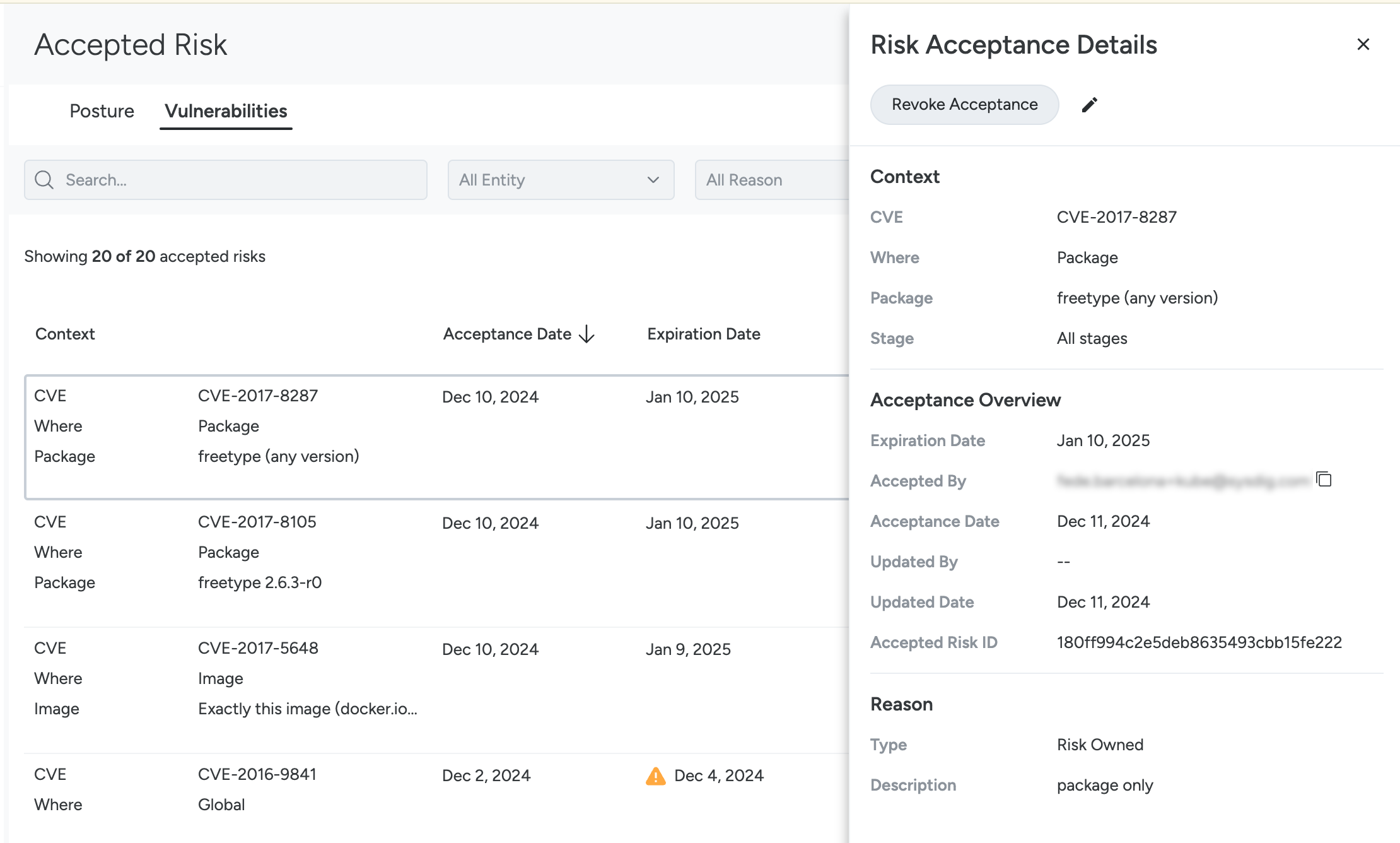
Select Vulnerabilities > Exception.
Any vulnerabilities that were added as an exception are displayed (in the order of acceptance date).
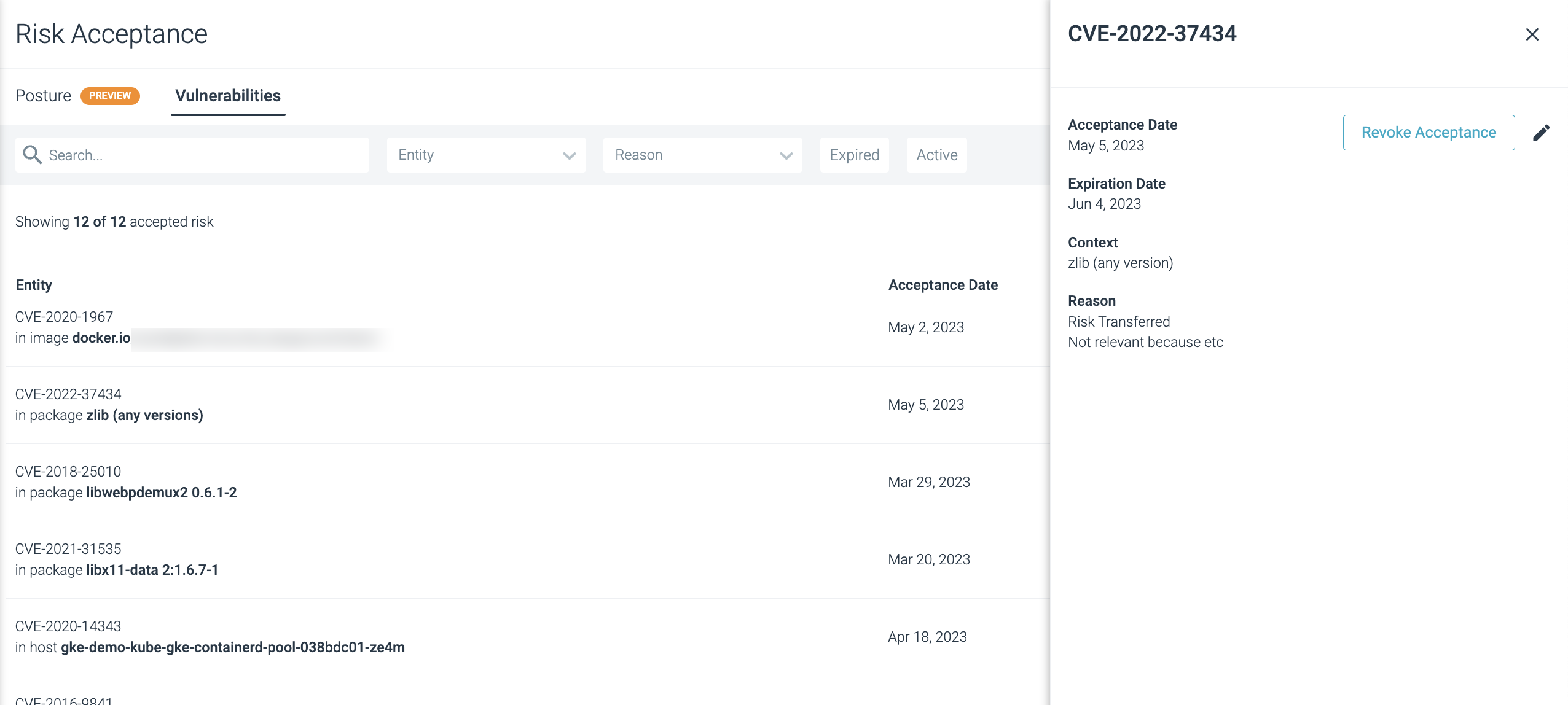
Filter results by:
- Search: Free text search on relevant terms such as the image name, package name, and CVE ID.
- Entity: You can filter by Vulnerabilities, Image name, Host name, and Policy Rule.
- Reason: Filter by Risk Avoided, Risk Owned, Risk Transferred, Risk Avoided, Risk Mitigated, Risk Not Relevant, or Custom.
- Expired: Filter by expired Risks that were accepted. You can sort the table by expiration or acceptance date, ascending or descending.
- Active: Shows all the active Risks that are accepted. You can sort the table by expiration or acceptance date, ascending or descending.
- Accepted/Updated by: Displays the username of the individual user who accepted or most recently updated the risk. You can also determine who accepted the risk in the scan result.
Select an entry to open its detail panel to:
- Revoke an acceptance
- Edit the Reason and Expiration details of an accepted Risk.
Note: When an exception expires, it no longer excludes the vulnerability from the vulnerability count.
