List Matching Policy
List Matching Policies and rules are being retired on February 28, 2026. Read more in the deprecation notice.
Event notifications are generally limited to a frequency of once every five minutes. For details, see Message Throttling in Sysdig Secure.
Convert to Falco rules
List-matching rules can be implemented as simple Falco rules, allowing you to:
- Create exceptions, useful to fine-tune detections based on expected behaviors
- Create narrower conditions, to spot more precise behaviors, identifying detections more precisely
- Define a personalized output, based on the attributes you’re interested in and better explaining the event being displayed
In the following sections we describe a programmatic way to approach that.
Container Rule Conversion
A Container List matching rule detects container events when the image has a match, positive or negative, with respect to a list of images. You can specify the images by name, optionally using the repository url, the tag and the digest.
While this is possible in Falco, you would need to build a complex rule using different attributes
(container.image, container.image.repository, container.image.tag, container.image.digest). More simply,
you can use the contains operator against the container.image field and obtain a coarser match.
Unless you’re looking for an exact match, it’s not possible to use list operators, so the list of images specified
in the list-matching rules needs to be exploded in OR-ed comparisons. Using the contains approach as reference, a
list “image1, image2, image3” would be expanded as:
container.image contains "image1" or container.image contains "image2" or container.image contains "image3"
Original rule:
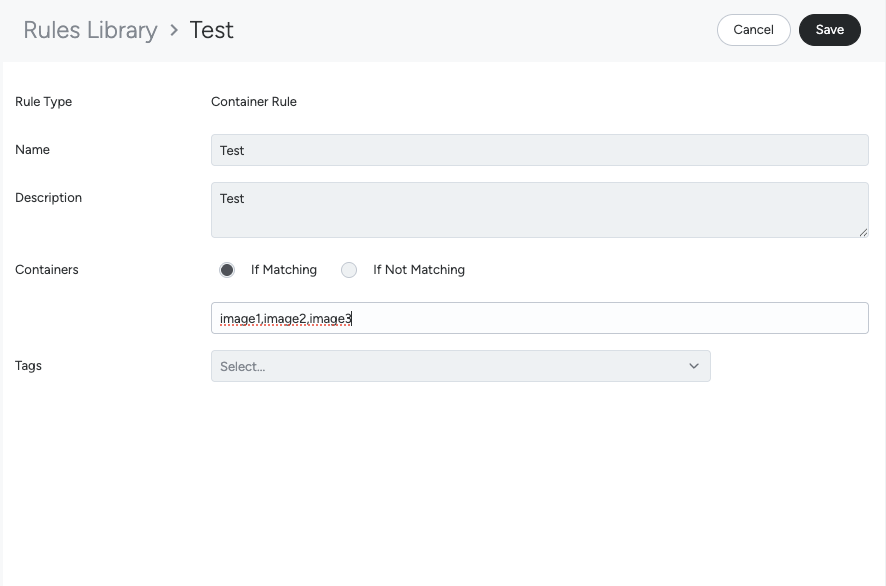
Overall the resulting rule, with a positive-matching pattern, can be written as the following Falco rule:
- rule: my-container-list-matching-rule
  description: ...
  condition: >-
    evt.type = container and (container.image contains "image1" or container.image contains "image2" or
    container.image contains "image3")
  output: '%container.id %container.name %container.image %container.image.id'
  source: syscall
  priority: info
The matching can be made negative by prepending not to the container.image-related expression, wrapping it between parenthesis.
File system rule conversion
A File system List matches file open events against:
- A list of read/write files (see
rw_files), with a positive/negative matching pattern - A list of read files (see
r_files), with a positive/negative matching pattern
Original rule:
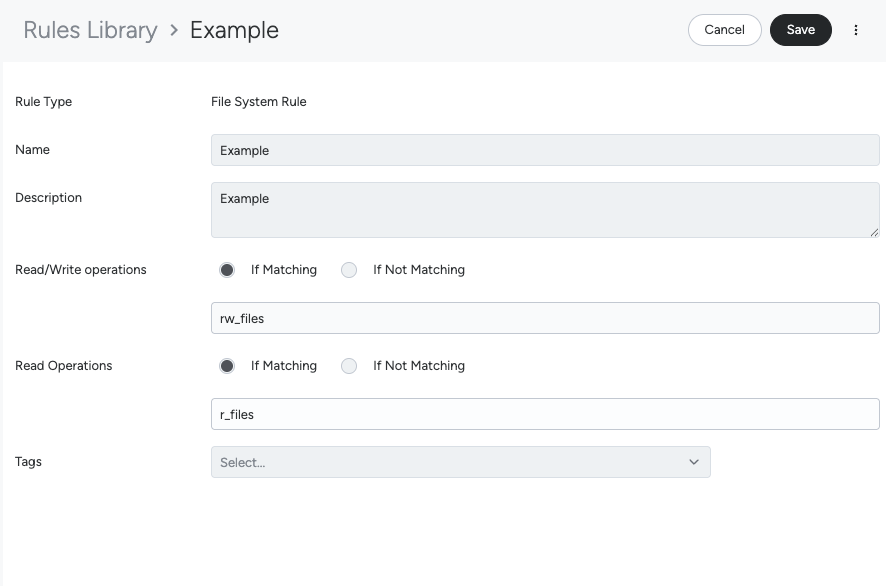
This can be equivalently written, with positive-matching patterns, as:
- rule: my-file-list-matching-rule
  description: ...
  condition: >-
    evt.type in (open, openat) and evt.dir=< and evt.rawres > 0 and (
    evt.is_open_write = true and fd.name pmatch (<rw_files>)) or (
    evt.is_open_read = true and evt.is_open_write=false and fd.name pmatch (<r_files>))
  output: '%evt.type %fd.name %evt.arg[1] %evt.arg[2] %evt.abspath %evt.abspath.dst'
  source: syscall
  priority: info
You might want to cover additional use cases by adding other file-related events:
mkdirmkdiratrmdirrenamerenameatunlinkunlinkatThe matching pattern can be made negative by prependingnottofd.name pmatch (...).
Network Rule Conversion
A Network List matching rule can detect inbound and/or outbound connections, based on the enabling or disabling of the direction (Deny means it’s enabled). That detection applies only to the TCP and UDP server ports specified.
Original rule:
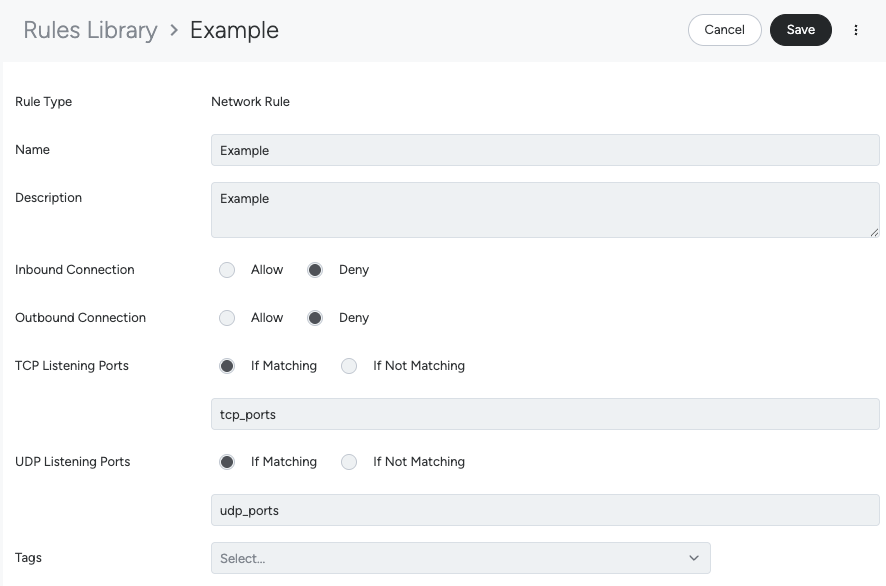
This can be equivalently written with positive-matching patterns, as:
- rule: my-network-list-matching-rule
  description: ...
  condition: >-
    (inbound or outbound) and
      (fd.l4proto = tcp and fd.sport in (<tcp_ports>)) or
      (fd.l4proto = udp and fd.sport in (<udp_ports>))
    )
  output: '%fd.l4proto %fd.cip %fd.cport %fd.sip %fd.sport'
  source: syscall
  priority: info
The matching patterns can be made negative by prepending not to fd.sport in (...).
The example above matches both inbound and outbound connections.
This can be configured as in the List-matching rule by removing “allowed”.
inbound and outbound are Macros available out of the box. Read more about macros here.
Process Rule Conversion
A Process List matching rule generates events for process executions, when the process is (or is not)
in a list of processes that you specify (see proc_list).
Original rule:
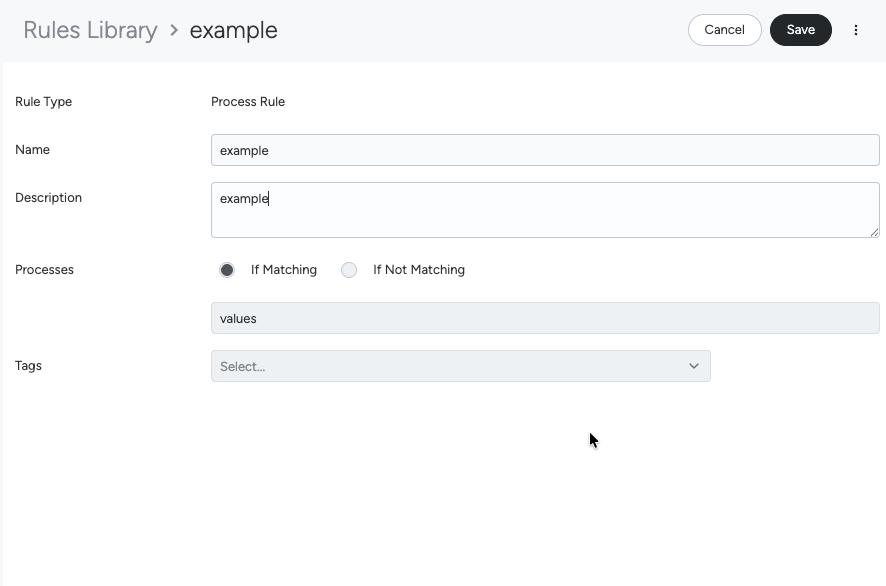
This can be equivalently written as:
- rule: my-process-list-matching-rule
  description: ...
  condition: evt.type in (execve) and proc.name in (<proc_list>)
  output: '%proc.name'
  source: syscall
  priority: info
The matching pattern can be made negative by prepending not to proc.name in (...).
Syscall Rule Conversion
A Syscall List matching rule has a list of syscalls it matches against, with a positive or negative matching pattern.
This rule can be extremely noisy, so it’s not recommended to use it in production environments. It can still be useful to learn about Falco and experimenting with the Sysdig’s detections.
Original rule:
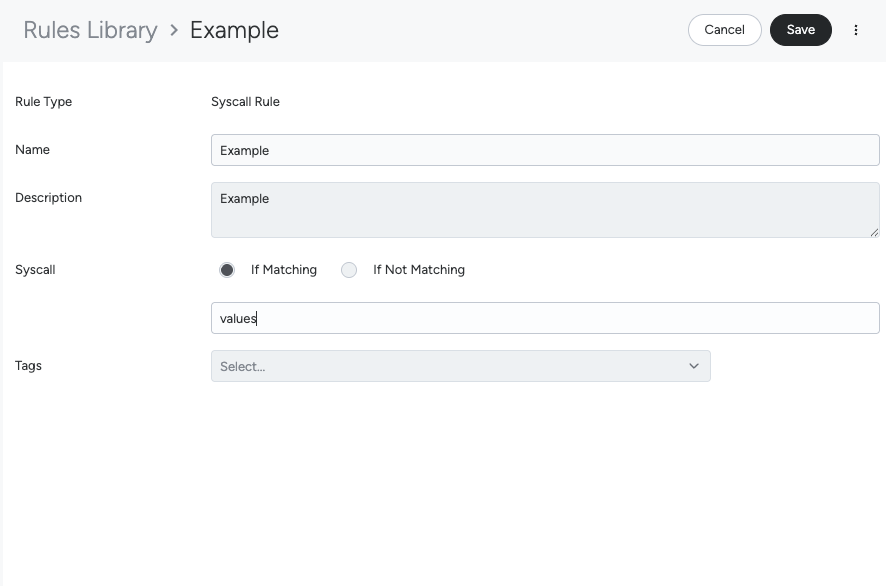
This can be equivalently written, with positive-matching pattern, as:
- rule: my-syscall-list-matching-rule
  description: ...
  condition: evt.type in (<values>)
  output: '%evt.type'
  source: syscall
  priority: info
The matching pattern can be made negative by prepending not to evt.type in (...).
Create a List Matching Policy
To create a List Matching policy:
Log in to Sysdig Secure and select Policies > Runtime Policies.
Click Add Policy and select List Matching.
Configure a List Matching Policy
Basic Parameters
Name: Enter a policy name.
Description: Provide a meaningful and searchable description.
Enabled/Disabled: Toggle to enable the policy so it generates events.
Severity: Choose the appropriate severity level you would like to see in the Runtime Policies UI: High, Medium, Low, Info
Policy severity is subjective and is used to group policies within a Sysdig Secure instance. There is no inheritance between the underlying rule priorities and the severity you assign to the policy.
Scope: Define the scope to which the policy will apply, based on the type-dependent options listed.
Link to Runbook: (Optional) Enter the URL of a company procedure that should be followed for events resulting from this policy. For example: https://www.mycompany.com/our-runbook-link.
If you enter a value here, then a View Runbook option will be displayed in any corresponding Event.
Policy Rules
Add or edit policy rules as needed. You can choose to Import from Library or create a New Rule. To learn more about rules, see Manage Threat Detection Rules.
Actions
Determine what should be done if a Policy is violated.
Kill Process
Toggle Kill Process on to have the policy automatically kill the process that triggered the event. This works for container events and hosts, and honors the agent flag to ignore actions at the agent.
Containers
Select what should happen to affected containers if the policy rules are breached:
- No container action: Do not change the container behavior; send a notification according to Notification Channel settings.
- Kill: Kill one or more running containers immediately.
- Stop: Allow a graceful shutdown (10-seconds) before killing the container.
- Pause: Suspend all processes in the specified containers.
For details, see Available Response Actions.
The agent can be configured to prevent Kill, Pause or Stop actions regardless of the policy.
Capture
Toggle Capture on if you want to create a capture in case of an event, and define the number of seconds before and after the event that should be in the snapshot.
As of June 2021, you can add the Capture option to policies affecting events from both the Sysdig agent and Fargate Serverless Agents Fargate serverless agents.
Note that for serverless agents, manual captures are not supported; you must toggle on the Capture option in the policy definition.
See also: Captures.
Notify
Select a notification channel from the drop-down list to send notifications of events to appropriate members of your staff or team.
See also: Set Up Notification Channels.
Search for Existing Policies
To review the existing policies:
Log in to Sysdig Secure and select Policies > Runtime Policies.
Filter for Managed Policy and List Matching.
You can edit a managed policy, duplicate it to create a custom policy, or click + Add Policy, choose List Matching to configure it from scratch.
