Resources
Built on Sysdig’s graph database technology, this feature lets you:
- Browse resource types organized by category, such as Compute, Storage, and Network.
- Search and Filter resources using dynamic, schema-aware filters.
- Export filtered data for analysis and reporting.
This inventory uses graph-based queries to provide a streamlined way to explore resources across your environment.
Prerequisites
Read permissions to Inventory.
Ensure that you are assigned to a Custom Role with read permissions to Inventory.
Exporting data will also require the export permission to Inventory.
Inventory displays all resources from cloud accounts, Kubernetes data sources, and IaC Git resources connected to Sysdig, along with their findings for compliance, vulnerabilities, exposure and more. If expected results do not appear, review these prerequisites:
- Newly created Posture policies are not assigned to any zone by default. To see compliance findings from new policies, Link a Policy to a Zone.
- Data shown in the UI is refreshed every 24 hours when a compliance evaluation is run. Data from newly added Zones may take up to 24 hours to appear.
- Data in Inventory Resources is retained for 7 days. For more details, see Data Retention.
Enable Inventory Resources
| Resources | Configuration | Required |
|---|---|---|
| Cloud resources (AWS, GCP, Azure) | Connect a cloud account. See Connect Cloud Accounts. | Yes |
| Kubernetes resources (Users, Roles, Groups, Hosts, Workloads…) | Install the Sysdig agent with Kubernetes Security Posture Management (KSPM) enabled, using --set global.kspm.deploy=true \.See Install Kubernetes. | Yes |
| Container Images | When installing the Sysdig agent for Kubernetes resources, above, also install the Runtime Image Scanner. This is included automatically when you install the agent using the Quick Start Wizard. See Install Kubernetes. | Yes |
| Standalone Hosts (Linux, Docker) | Install the Posture Host Analyzer (non-Kubernetes) as a container. See Install Posture Host Analyzer | No |
| IaC Code | Check the IaC Supportability Matrix. - Set up a Git Integration. - Add Git Sources. See Git Integrations. | No |
| Vulnerable cloud hosts | Agent-based or Agentless Vulnerability Host Scanning | No |
| Vulnerable packages running on Kubernetes Workloads | Requires In Use, which is auto-enabled from Sysdig agent v.12.15+. See In Use. | No |
Access the Resources Page
- Log in to Sysdig Secure.
- From the left navigation, select Inventory. If it isn’t already enabled, switch to new experience using the Try the New Experience toggle in the top-right corner.

Interface layout
The Inventory page is organized into two main areas:
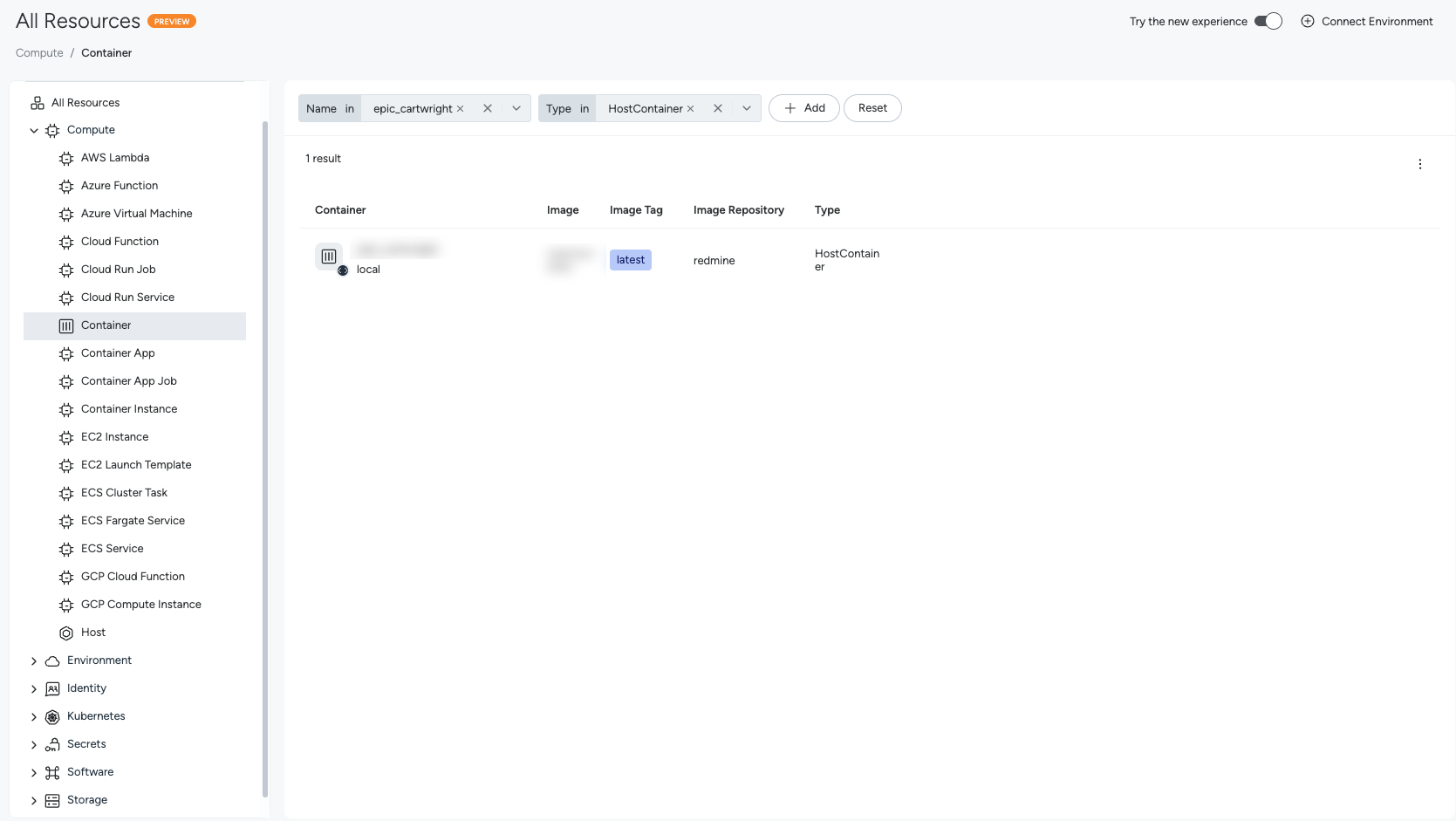
- Left Navigation Panel: Displays a hierarchical tree of resource types.
- Main Content Area: Shows the All Resources summary or a data table for the selected resource type.
Left Navigation Panel
The left navigation panel groups available resources into a searchable, hierarchical tree:
- Search bar: Filter resource types by name or category.
- All Resources: A top-level view that summarizes all available resource types.
- Categories: Expandable groups such as Compute, Storage, and Network, listed alphabetically.
- Resource types: Individual entities displayed with icons (for example, EC2 instances, S3 buckets, or Kubernetes pods).
Main Content Area
The main content area updates based on your selection:
- All Resources view: Displays a table of all available resource types. Select a row to open the corresponding resource type view.
- Entity detail view: Displays detailed information for a selected resource type, including:
- Filter bar
- Paginated data table
- Export button
Side Panel Details
From the entity detail view, select a row in the data table. It provides detailed information about the selected resource:
- Complete set of resource properties and values
- Related entities
- Action buttons for supported operations
View Resource Details
Click on any resource to open the Resource Details drawer. This drawer summarizes everything Sysdig knows about a resource — all of its findings, events, misconfigurations, metadata, environment information, and more.
To open the Resource Details drawer:
Log in to Sysdig Secure.
Navigate to Inventory > Resources.
Perform a search or filter the resources page.
From the results, select a resource.
The Resource Details drawer opens.
This drawer lets you determine the status of a resource, and answer questions, such as:
- Does this resource have a ticket open on it?
- What’s the status of the ticket?
- Is this resource under investigation by our SOC team?
Remediate Vulnerabilities with the Resource Details Drawer
A possible work flow for using the Resource Details drawer to remediate a vulnerability might be:
- In the Sysdig Secure UI, you navigate to Inventory > Resources.
- You select a resource. The Resource Details drawer opens.
- On the Highlights tab, you learn the resource is exposed to the internet, and has a critical vulnerability.
- You select the Vulnerabilities tab to learn more, and discover the critical vulnerability has a remediation.
- The remediation involves updating a Python package. You copy the details.
- You select Create Ticket to open a Jira ticket form.
- You paste the details of the vulnerability and the remediation, and assign it to an engineer to implement.
Navigate Resource Detail Drawer Tabs
The Resource Details drawer features several tabs, each covering a different category of information about the resource. You can navigate through the tabs to accomplish different goals, like creating a Jira ticket, or discovering what vulnerabilities are associated with a resource.
Highlights Tab
This tab offers a high level security overview for the selected resource, including Top Security Issues, Runtime Insights, Metadata, Resource Labels, and Assigned Zones.
Click on any of the information displayed, such as the names of the assigned zones or the attached labels, to copy it to your clipboard.
The Ownership section displays the results of your configured Owner Keys and Ticket Assignee Keys mapping.
- Sysdig Ownership: View the number of owners currently mapped to the resource. In this example, three owners have been identified based on the resource labels.
- Jira Assignee Indicates who will be automatically tasked with remediation if a security issue is detected.
- Check Status: If the field shows –, it means no Ticket Assignee Key (such as sysdig_jira_assignee) was found in the resource metadata.
- Sysdig Ownership: The number of owners currently mapped to the resource. In this example, three owners have been identified based on the resource labels.
- Jira Assignee: Who will be automatically tasked with remediation if a security issue is detected.
- Check Status: If the field shows –, it means no Ticket Assignee Key (such as sysdig_jira_assignee) was found in the resource metadata.
To set your Owner and Ticket Assignee keys, please find the instruction in the Administration setting.
Response Actions Tab
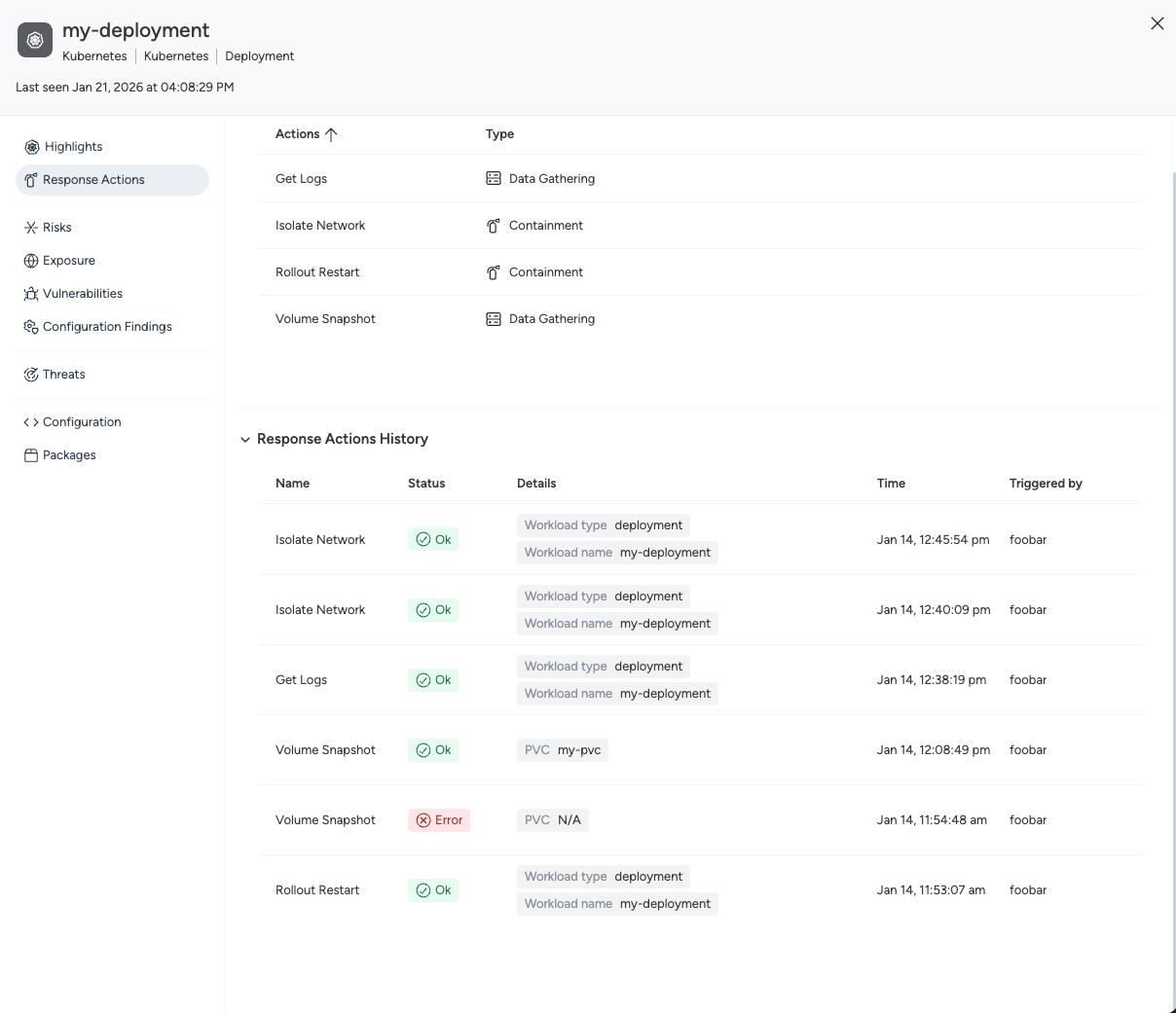
Through the Response Actions tab you can use Data gathering actions to perform Threat hunting activities or stop incidents detected through other means rather than Runtime Events, where you have the actions directly available.
Sysdig supports executing Response Actions, showing them on the following resource types:
- Hosts: Host, Container and File actions, if Response Actions is set up on Host Shield
- Kubernetes workloads: Kubernetes actions compatible with the selected resource, if Response Actions is enabled on the Cluster Shield.
Check out the prerequisites in the Response Actions page to set them up.
You will only see the actions applicable to the selected resource. From there, you’ll be able to execute them.
On the same resource, you can also explore the Response History, to see which actions were performed in the past and download the artifacts. By using the “View Detail” contextual action, you can see the action parameters:
- Metadata, containing the execution status and the execution timestamp
- Inputs, showing the action target information
- Configuration, having details about the setup when that action was run
Response Actions Tab
Through the Response Actions tab you can use Data gathering actions to perform Threat hunting activities or stop incidents detected through other means rather than Runtime Events, where you have the actions directly available.
Sysdig supports executing Response Actions, showing them on the following resource types:
- Hosts: Host, Container and File actions, if Response Actions is set up on Host Shield
- Kubernetes workloads: Kubernetes actions compatible with the selected resource, if Response Actions is enabled on the Cluster Shield.
- AWS resources: Cloud Response Actions compatible with the selected resource, if Cloud Response Actions are deployed in the resource’s context.
Check out the prerequisites in the Response Actions page to set them up.
You will only see the actions applicable to the selected resource. From there, you’ll be able to execute them.
On the same resource, you can also explore the Response History, to see which actions were performed in the past and download the artifacts. By using the “View Detail” contextual action, you can see the action parameters:
- Metadata, containing the execution status and the execution timestamp
- Inputs, showing the action target information
- Configuration, having details about the setup when that action was run
Risks Tab
The Risks tab provides a centralized view of all Risk Findings associated with a specific resource. This includes details such as:
- Risk Definition – A short description of the potential issue.
- Severity – Critical, High, Medium, or Low.
- Finding Categories – What type of issue was detected (e.g., Exposed, Vulnerability, or Configuration).
- Context – Additional details such as whether the issue is actively in use, or has exploit.
You can filter the table by Severity to focus on the most urgent risks.
Click on a row to open the full Risk Finding drawer, with further details and remediation guidance.
Vulnerabilities Tab
The Vulnerabilities tab displays the latest runtime vulnerabilities scan results for that image or workload. This tab lists all of the CVEs identified on this specific resource, with information such as CVE ID, Severity, Context (In Use, Has Exploit, Has Fix, Exception Exists), the Exploit Prediction Scoring System (EPSS) score, the image it is found on, and the package/path.
You can filter the list of vulnerabilities by Name, Severity, and Context. The available Context filters are: In Use, Has Exploit, Has Fix, and whether any Exception exists.
For a container image with layer data, a Layer filter lets you restrict the list to one or more image layers, so you can review the CVEs a specific layer introduced. For a resource that runs more than one container, a Container name filter scopes the list to a single container. Changing the container clears any selected layers, because layers belong to a single scan result. To browse the layers themselves, see Layers Tab.
Click the Severity or EPSS columns to sort the list in ascending or descending order of severity or EPSS score.
Click a CVE listing to open the full CVE details.
Here, you can:
- Learn more about the vulnerability, such as where else it was reported, and whether a fix is available.
- Create a Jira ticket, if you have integrated Jira.
- Accept the Finding in Risk Acceptance.
Runtime image scans include the Image ID. If the image was also scanned in Pipeline or Registry, then you can view it in the Pipeline or Registry Vulnerabilities interface using the 3-dot menu.
Cloud Host scans are performed against runtime packages.
Use the Image ID to view container images as a first-class citizen in Inventory or the Runtime Vulnerabilities interface from Workloads.
With In Use enabled, you can see which of your vulnerable packages are currently loaded in Runtime.
Vulnerability Policies Tab
The Vulnerability Policies tab shows how this resource was evaluated against the Vulnerability Policies you have configured. Use it to see why a resource fails a policy, and what to do about it.
The tab appears for resources that Sysdig scans for vulnerabilities, such as container images, workloads, and hosts. To define the policies evaluated here, see Vulnerability Policies.
The Policies table lists each policy applied to the resource under a Policy / Rule column, with a Status column for the result. Expand a policy to see its individual rules and the status of each.
A rule reports one of the following statuses:
| Status | Description |
|---|---|
| Failed | The resource violates the rule. |
| Passed | The resource satisfies the rule. |
| Success | The rule failed, but every violation is covered by an accepted risk. A rule where only some violations are accepted still reports Failed. A policy reports Success when all of its failing rules are accepted. |
| Not applicable | The rule does not apply to this resource. |
| Not evaluated | The most recent scan did not evaluate the rule. |
Use the Failed and Passed toggles to narrow the table. Passed covers every status other than Failed, so clearing it also hides rules with a Success, Not applicable, or Not evaluated status.
When a resource runs more than one container, a Container name filter lets you scope the results to a single container.
Select Reset to return the filters to their defaults. Reset appears only after you change a filter.
If the resource has no policy results, the tab shows No Policy Evaluations with a Configure a policy link to create one.
To investigate a result, select a rule. A details panel opens alongside the drawer and shows:
- Details: the Rule Bundle and Policy Name that the rule belongs to.
- Remediation: Guidance for resolving a failed image configuration rule.
- Violations: what caused the rule to fail. The contents depend on the rule type:
- A vulnerability rule lists the offending CVEs, with CVE ID, Severity, Context, EPSS, Component, Component Type, and Lifecycle columns. Select a CVE to open its full finding details.
- A Component Lifecycle rule lists the components that violate the rule. Select a component to open its details. For more information, see Software Lifecycle and End-of-Life Visibility.
- A rule that passed shows an All Good! state in place of a violation list.
For a rule that failed, select Create Exception in the panel header to accept the risk. For more information, see Risk Acceptance.
The open tab and the selected rule are both captured in the page URL, so you can bookmark or share a link to a specific rule. Filter selections are not included in the URL.
Configuration Findings Tab
This tab shows you all of your failing Compliance policies for this resource and a breakdown of how many controls failed and passed within each failing policy.
Hover over the results of a failing policy to find out how many controls passed, and how many are failing.
Under Failing Controls, you can see the name of the failing control to be remediated, how many policies and requirements it belongs to, and its severity. The controls are grouped by requirement within each policy.
Hover over the number of policies or requirements to find out their name, and copy them to your clipboard with a click.
Exposure Tab
The Exposure tab shows you if and how a resource is exposed to the Internet.
Select Explore to open a diagram of the different exposure paths. Click on each of the nodes to learn more.
Under Exposure Findings, select a finding to learn about the exposure path in detail. You can discover the resource’s region, when it was last seen, and which platform it is on.
You can also pivot to examining the resource detail drawer for each resource involved in the exposure paths. For instance, if you navigate to an EC2 Instance and view its exposure path, clicking on the Internet Gateway within will overlay a new resource details panel, providing more information about that gateway.
Under Contributing Resources, you can find other resources in the same exposure path. Select any of the resources to open a new Resource Details drawer for them.
Sysdig supports network exposure analysis on the following resource types:
- Storage accounts and containers: Azure Storage Account and Blob Service containers
- Storage buckets: AWS S3 Bucket, GCP Cloud Storage Bucket, and Azure Blob Container
- Serverless functions: AWS Lambda Function, GCP Cloud Function, and Azure Function
- Compute instances and virtual machines: AWS EC2 Instance, GCP Compute Instance, and Azure VM
- Network resources: Classic Load Balancer (CLB), Application Load Balancer (ALB), Network Load Balancer (NLB), Security Group, Subnet, Route Table, and Internet Gateway
- Kubernetes workloads: GKE Deployments and Services exposed via LoadBalancer, Ingress, and Network Policy misconfigurations
These detections use cloud-native constructs such as public IPs, route tables, security groups, access policies, and firewall rules to trace exposure paths. Findings include an evidence chain that explains how each resource became exposed.
Configuration Tab
This tab shows you different “Configurations” detected for the resource, depending on the type:
- CSPM Resource: Cloud security posture management (CSPM) resource represented in JSON or YAML format.
- Example: A k8s Deployment Yaml file, or the EC2 Instance description in JSON format.
- Host resource: List of host-configurations detected at the Linux-Host, or Containers
- Example: Docker iptables config, or /etc/shadow “password expiration”.
- IaC Resource: Resources that are read from a Source-Code-Repo show here that actual “Manifest” Yaml/Json that was detected as an Infra-As-Code file
- Example: A Json representation of the Terraform HCL configuration block for a EC2 Instance.
- Images: For Images we will show an empty screen.
Components Tab
Where a resource has detected software, this tab displays all the components Sysdig has identified on the resource, and their paths. You can see how many vulnerabilities each component contains, and context about the vulnerabilities (In Use, Has Exploit, Has Fix).
Select any Package/Path to see more details about it, such as its source, and package type. You can also check whether any update or patch is necessary.
The Components tab also includes a Lifecycle column showing each component’s end-of-life status when Sysdig has lifecycle data for it. You can narrow the table to components nearing or past their end-of-life date using the Lifecycle filter (Approaching End of Life, End of Life). For details on supported coverage and lifecycle states, see Software Lifecycle and End-of-Life Visibility.
Supply Chain Findings Tab
The Supply Chain Findings tab lists the license and end-of-life findings on the resource. It shows the same table and filters as the Supply Chain Findings page, limited to this resource. Select a finding to open its details. For more information, see Supply Chain Findings.
Layers Tab
For a container image, the Layers tab shows the layers that make up the image and how many vulnerabilities each one contains. Use it to tell whether your risk comes from a base image, which a platform team usually owns, or from your own application layers. For background on how Sysdig analyzes layers, see Layered Analysis.
Layers are grouped under the base image they come from, listed by their pull string. Layers that are not part of a detected base image are grouped under Application Layers. Each group is expanded by default, and each layer shows:
| Column | Description |
|---|---|
| # | The index of the layer in the image. |
| Command | The Dockerfile instruction that created the layer. Hover over the value to see the full command. Layers built without a recorded instruction show No command. |
| Vulnerabilities | The number of vulnerabilities in the layer, by severity. |
Use the Image Hierarchy filter to narrow the table to a single group. The options are All Layers, one entry per detected base image, and Application Layers. For a resource that runs more than one container, a Container name filter also appears. Changing the container resets Image Hierarchy to All Layers.
Select a layer to open the Vulnerabilities tab filtered to that layer, so you can go from a layer that carries most of your risk to the CVEs behind it. Group headings are not selectable.
The Layers tab appears for container images, and not for hosts. It shows No Layers Found when the scan that produced the results did not capture layer data, such as a scan from the legacy runtime-scanner. Sysdig can only group layers under a base image when it already has the base image’s Software Bill of Materials (SBOM). Without it, every layer appears under Application Layers. For the components and versions that report layer data, see Layered Analysis.
Identity Findings Tab
The Identity Findings tab displays identity-related risks and deviations from best practices associated with the selected IAM resource. Findings are listed in a table with columns for Finding Name and Severity, helping you quickly understand the nature and criticality of any detected issues.
This tab highlights problems such as risky permissions, misconfigurations, or usage anomalies. Select any Finding to open a panel with a detailed description and suggested remediationss to help you resolve the issue.
Use this tab to:
- Assess the security posture of IAM entities such as users, roles, or service accounts.
- Prioritize remediation actions based on severity.
- Track common identity hygiene issues such as access key usage or inactivity.
Connected Resources Tab
The Connected Resources tab shows relationships between the selected IAM entity and other IAM resources. This includes users, groups, roles, or service identities that are connected to the current identity, either directly or through shared permissions or policies.
Use this tab to:
- Track identity sprawl and assess lateral movement risk.
- Investigate which other identities might be affected by the same policies or privileges.
- Pivot to additional identity resources for further inspection.
Data Findings Tab
The Data Findings tab displays information about any sensitive content that has been discovered on a resource. The findings are at the data category level, with Personal, Health, and Financial supported. Click a row with a finding to open the corresponding Data Finding drawer, which shows a summary of the affected resource, a description of the category, and a list of the specific data classes (such as name, SSN, or credit card number) and an example of where in the resource they were seen.
Work with IaC Resources
If you have configured IaC scanning, you can view the resources supported by the Git-integrated scanner in the Inventory, such as YAML, Terraform, and Helm charts. The view of each code resource includes:
- resource metadata
- configuration details
- posture violations that can be remediated with automated workflows.
For more information, see IaC Support.
Inventory currently supports AWS (EC2 Instance) and GCP (Compute Instance) Hosts. Azure VMs are out of scope.
Common Workflows
Explore Resource Types
The goal is to browse available resources and understand your infrastructure composition.
- Go to Inventory > Resources with All Resources selected.
- Review the table showing all available resource types.
- In the left navigation, expand a category you want more information on (for example, Compute).
- Select a specific resource type (for example, AWS EC2 Instance).
- View the list of resources for the selected type.
Filter resources
The goal is to find resources that match specific criteria.
- Select a resource type from the left navigation. Wait for the initial data load to complete.
- In the filter bar, select + Add filter.
- Choose a field (for example, Name).
- Select an operator (for example, In).
- Enter one or more values (for example,
production-server). - Add additional filters as needed.
- Review the filtered results in the table.
Export Data
The goal is to download filtered results for external analysis.
- Apply the required filters and sorting.
- Select Export from the toolbar. Wait while the export is generated.
- Download the report when the export is complete.
Use the Inventory API
Query the Secure API to get a list of multiple inventory resources or retrieve a single one.
For details, see the Inventory entries in the API documentation.
For API doc links for additional regions or steps to access them from within the Sysdig Secure UI, see the Developer Tools overview.
At this time, only resource metadata and posture data are in scope. Vulnerabilities, package, and exposure data are currently not available.
Inventory Data Dictionary
You can construct searches/filters by attribute name in the Inventory unified filter.
| Filter Operators |
|---|
| is (=) is not (!=) in (in) not in (!in) yes (Y) no (N) startsWith (^) contains (%) (wildcards not supported) exists/not exists |
| Attribute Name | Attribute Definition |
|---|---|
| Account | The container for your AWS resources. You create and manage your AWS resources in an AWS account. If an account has an alias, use the alias to search for the account in Inventory instead of the Account ID. |
| Architecture | The CPU architecture for which your container image is built |
| ARN | The unique identifier of your AWS cloud resource |
| Attribute* | The attributes defined within the configuration of your Kubernetes host or cluster * Only filtered from within a Kubernetes host or cluster resource configuration. |
| Base OS | Base operating system of your container image |
| Category | Classification or grouping of your resources and services based on their functionalities, characteristics, and use cases. |
| Cluster | Name of your Kubernetes cluster |
| Containers | The container name(s) of your workload(s) |
| Created | Date your container image was created |
| CVSS | The CVSS score (0.0 - 10.0) of the CVE |
| External DNS | The DNS name of your Kubernetes host’s node that will resolve into an address with external address characteristics |
| Git Integration | Name of the Git integration. See IaC Scanning/Git Integrations |
| Git Repository | Name of the repository, example: IaC_Demo |
| Has Exploit | If the vulnerability has a known exploit |
| Has Fix | If the vulnerability has a known fix |
| Host Image ID | The unique identifier associated with a custom or public image used to create and launch your virtual machine instances. Examples: AWS: ImageID (ex: ami-0123456789abcdef0) GCP: sourceImage or sourceDisk (ex: projects/canonical-cloud/global/images/family/ubuntu-2004-lts) |
| Host OS | Operating System of your Kubernetes host |
| Image Digest | Hash value computed from the content of your container image to verify its integrity (ex: sha256:0278c0…) |
| Image ID | Unique identifier assigned to your container image (ex: sha256:062ab3…) |
| Image OS | The operating system environment encapsulated within your container image |
| Image Pullstrings | The path where your container image was pulled from in the registry |
| Image Registry | Storage system where your container is hosted and managed |
| Image Tags | Labels or identifiers associated with your container images (ex: latest, v1.4) |
| In Use | If the package is running |
| Kubernetes Distribution | GKE, EKS, AKS, Rancher, Vanilla, OpenShift v4, IKS, MKE |
| Location | Path to the file or module directory in the repository (IaC resources): - Kubernetes manifest: path to the YAML file- Helm charts: Helm chart folder- Kustomize: path to the manifests folder (folder containing the base kustomization.yaml file)- Terraform: path to the .tf module folder |
| Namespace | Kubernetes cluster namespace |
| Node Type | Master or Worker node of your Kubernetes host |
| Organization | Root node of your managed cloud resources hierarchy |
| Origin* | The origin of your Kubernetes host’s or your cluster’s configuration (Docker, Linux, Kubernetes, etc.) * Only filtered from within a Kubernetes host’s resource configuration.. |
| OS Image | Name and version of your host’s Operating System |
| Package | The name of a package |
| Package Path | The file system location or directory path where your software package is stored or installed |
| Package Type | The format or structure used to package and distribute your software (ex: Java, OS) |
| Platform | AWS, Azure, GCP, Kubernetes, or Linux |
| Posture Accepted Risk | Whether or not a risk has been accepted for a resource’s control |
| Posture Applied Policy | Name(s) of the policies applied to the resource |
| Posture Failed Control Severity | High, medium, or low |
| Posture Failed Control | Name(s) of the failed control(s) applied to the resource |
| Posture Failed Policy | Name(s) of the failed policy(ies) applied to the resource |
| Posture Failed Requirement | Name(s) of the failed requirement(s) applied to the resource |
| Posture Passed Policy | Name of the passed policy applied to the resource |
| Project | The container for your Google Cloud resources. You create and manage your GCP resources in a GCP project |
| Exposed | If the resource is publicly or ingress exposed |
| Region | Region of the world where your managed cloud resource is deployed (such as us-east, eu-west, asia-northeast) |
| Resource ID | The unique identifier of your Google or Azure cloud resource |
| Resource Labels | Labels are key/value pairs, such as team:research, that you have applied to your resource from Kubernetes or Managed Cloud platforms (AWS, GCP, Azure). For Kubernetes, the Labels field includes all the labels for the resource, including nested labels. For example, a search on a label that exists on a container will return the workload that contains the container. |
| Resource Name | Name of your resource |
| Resource Origin | - Code: IaC resources from Git integrations - Deployed: Runtime resources |
| Resource Type | For Kubernetes, can be a Workload, Service Account, Role, Cluster Role, Host, User, Cluster, or Group. For managed clouds, it can be a Resource (S3 bucket, Deployment, DaemonSet…) or an Identity (Access Key, User, Policy…) |
| Source Type | Possible values for IaC source: YAML, Helm, Kustomize, Terraform |
| Subscription | The container for your Azure resources. You create and manage your Azure resources in an Azure subscription |
| Version/OpenShift Cluster Version | The version of your OpenShift cluster |
| Vulnerability | The CVE identified on your vulnerable package |
| Vulnerability Severity | The severity of the CVE |
| Zones | A business group of resources, defined by a collection of scopes of various resource types (for example: “Dev” - all my development resources) |
Technical Background
SysQL Query Engine
Graph Inventory builds queries using SysQL. This graph-based query model enables efficient traversal of resource relationships and supports complex filtering and correlation scenarios across connected entities. The following example illustrates the logical structure of a SysQL query:
MATCH {entity}
WHERE {filters}
RETURN DISTINCT {entity}
ORDER BY {sort}
LIMIT {limit}
OFFSET {offset}
Entity schema
Each resource type defines a schema that specifies:
- Available fields for filtering.
- Supported data types (text, number, date, boolean, severity).
- Supported operators per data type.
- Display properties such as icons and labels.
Troubleshooting
No Data Displayed
| Possible Causes | Recommended Action |
|---|---|
| No graph data sources are connected | Select + Connect Environment to configure a data source. |
| The selected entity has no resources in your environment | Try a different entity type or category. |
| Filters are too restrictive | Remove filters by selecting Reset to basic fields. |
Query Timeout
| Symptom | Recommended Action |
|---|---|
| An error message indicates that the query exceeded the time limit. |
|
Sort Limitation Error
Symptom
A CantSortState error appears when you select a column header.
Cause
Some entity fields do not support server-side sorting.
Recommended Action
Sort by a different column, or view results without sorting
Large Result Set Warning
Symptom
A TooLargeResultSetState warning appears with a recommendation to filter results.
Recommended Action
Add filters to reduce the number of matching resources before viewing results.
