Sysdig MCP Server for Monitor
The community sysdiglabs/sysdig-mcp-server project on GitHub is intended for experimentation only. For production use, connect to the hosted Sysdig MCP Server described on this page.
The Sysdig MCP Server enables AI clients to:
- List Kubernetes clusters, namespaces, nodes, workloads, and pods.
- Troubleshoot workloads and nodes with metrics, live logs, pod manifests, and storage and quota status.
- Discover metrics and labels.
- Run PromQL queries, and chart metrics over time.
- View and manage users, teams, and roles.
Your AI client speaks MCP to the Sysdig MCP Server, which then calls the Sysdig APIs on your behalf to fulfill each request.
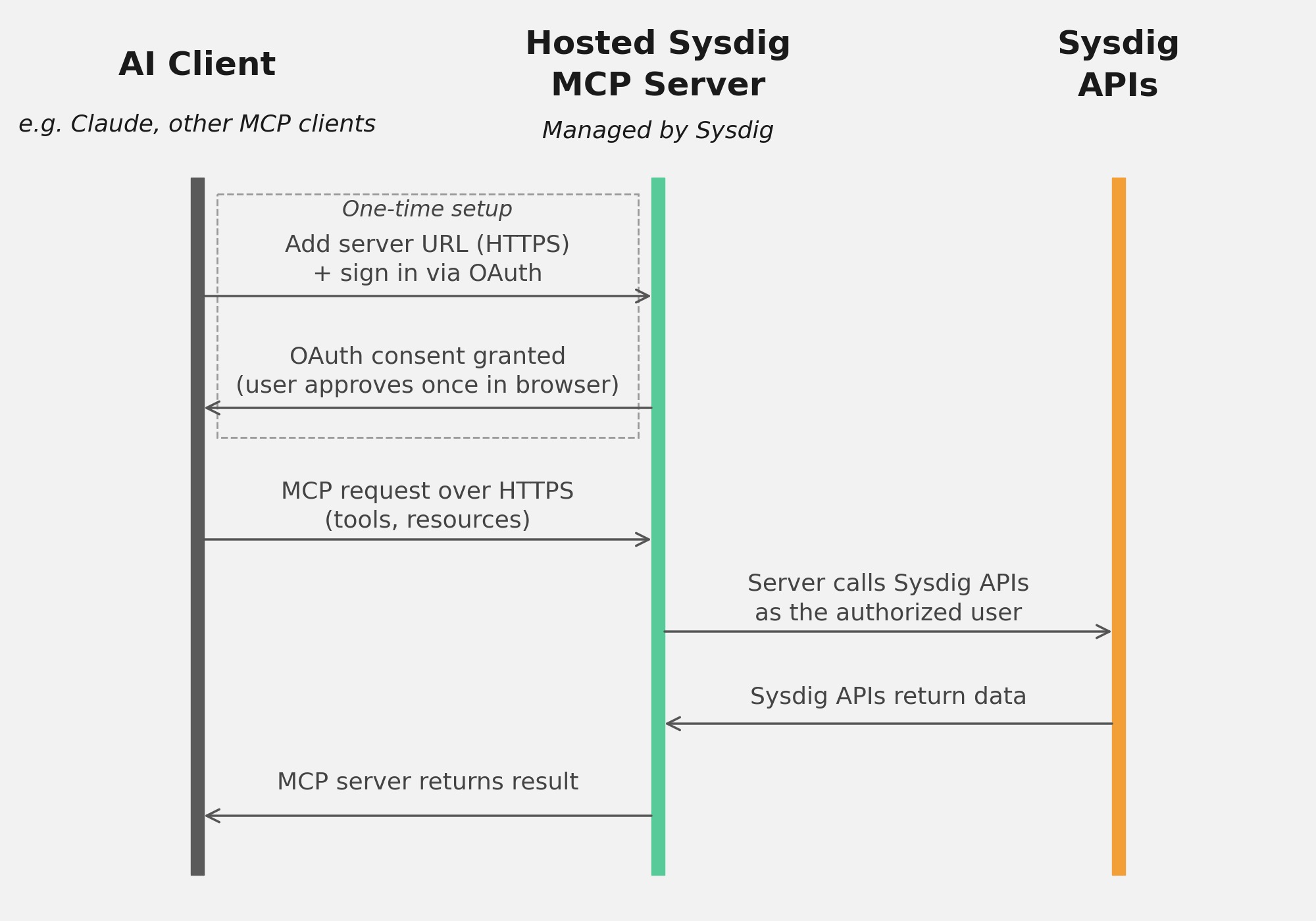
Hosted MCP Server
The hosted server is reachable over HTTPS, per region, and authenticated with OAuth. This is the recommended way to connect.
Set Up Sysdig Monitor MCP Server
To start using the Sysdig MCP Server for Sysdig Monitor, register it once with your AI client and authenticate through a one-time OAuth sign-in. The instructions below use Claude Code as an example, but it is possible to register with any MCP-capable client.
Prerequisites
- A Sysdig Monitor SaaS account in a supported region
- An MCP-capable AI client, such as Claude Code, Cursor, OpenAI Codex, OpenCode, or Claude Desktop
- Network connectivity from your client to your region’s Sysdig endpoint
- A browser for the one-time OAuth sign-in, or a Sysdig Monitor API token. See Authenticate with an API Token
- To use
fetch_live_logs: Live Logs available on your clusters
Rate limits are applied per customer: a maximum of 20 requests every 10 seconds and 5 concurrent calls at any time.
The hosted server uses OAuth by default, so you don’t need an API token. For a service account, or a client that cannot open a browser, you can authenticate with an API token instead.
Find Your Region’s URL
The hosted server lives at <region-url>/mcp/monitor. Identify your region from the Sysdig UI URL you see in your browser when signed in to Sysdig Monitor, then use the matching MCP Server URL in the registration steps below.
| Region | Code | Sysdig UI URL | MCP Server URL |
|---|---|---|---|
| US East (N. Virginia) | us1 | https://app.sysdigcloud.com | https://app.sysdigcloud.com/mcp/monitor |
| US West AWS (Oregon) | us2 | https://us2.app.sysdig.com | https://us2.app.sysdig.com/mcp/monitor |
| US West GCP (Oregon) | us4 | https://app.us4.sysdig.com | https://app.us4.sysdig.com/mcp/monitor |
| EU Central (Frankfurt) | eu1 | https://eu1.app.sysdig.com | https://eu1.app.sysdig.com/mcp/monitor |
| EU North (Stockholm) | eu2 | https://app.eu2.sysdig.com | https://app.eu2.sysdig.com/mcp/monitor |
| Asia Pacific (Sydney) | au1 | https://app.au1.sysdig.com | https://app.au1.sysdig.com/mcp/monitor |
| Asia Pacific (Mumbai) | in1 | https://app.in1.sysdig.com | https://app.in1.sysdig.com/mcp/monitor |
| Middle East (Dammam) | me2 | https://app.me2.sysdig.com | https://app.me2.sysdig.com/mcp/monitor |
| Asia Pacific (Tokyo) | jp1 | https://app.jp1.sysdig.com | https://app.jp1.sysdig.com/mcp/monitor |
Register the Server in Claude Code
Run the following command in your terminal, substituting your region’s MCP Server URL from the table above:
claude mcp add --transport http monitor-mcp-server https://us2.app.sysdig.com/mcp/monitor
Keep the server name as monitor-mcp-server. The registration is saved automatically; there is no environment variable to set or persist. Add --scope user to make the registration available across all your projects, or use the default (local) for the current project only. Restart any Claude Code session that was open before you ran the command.
Authenticate
The first time your AI client calls a Sysdig tool, run /mcp, select monitor-mcp-server, and select Authenticate. Your browser opens for a one-time OAuth sign-in, and the session is then authenticated for the rest of your work.
Configure Other AI Clients
Every MCP-capable client can use the same hosted server: an HTTP MCP server at your region’s /mcp/monitor URL, authenticated through OAuth. The exact steps differ per client (a config file, a settings panel, or a CLI command), but the essentials are identical:
- Transport: HTTP (streamable)
- Server name:
monitor-mcp-server - URL: your region’s MCP Server URL, for example
https://us2.app.sysdig.com/mcp/monitor - Authentication: OAuth by default. The client drives the browser flow on first request. To use an API token instead, see Authenticate with an API Token.
For clients that follow the standard MCP server schema, use a configuration snippet like the following. Edit the URL to match your region:
{
  "mcpServers": {
    "monitor-mcp-server": {
      "type": "http",
      "url": "https://us2.app.sysdig.com/mcp/monitor"
    }
  }
}
Consult your client’s MCP documentation for the exact configuration-file location and reload procedure.
Multi-region: There is no region-independent URL. Set the URL for your tenant’s region, and update it if you move to a different region.
Authenticate with an API Token
Use an API token for a service account, or for an AI client that cannot open a browser for the OAuth sign-in. The server accepts a Sysdig Monitor API token in a standard Authorization: Bearer header, and then acts with the permissions of the user or service account that owns the token. To get a token, see Retrieve the Sysdig API Token.
In Claude Code, add the header when you register the server:
claude mcp add --transport http monitor-mcp-server https://us2.app.sysdig.com/mcp/monitor --header "Authorization: Bearer <your-api-token>"
For other clients, add a headers entry to the server configuration:
{
  "mcpServers": {
    "monitor-mcp-server": {
      "type": "http",
      "url": "https://us2.app.sysdig.com/mcp/monitor",
      "headers": {
        "Authorization": "Bearer <your-api-token>"
      }
    }
  }
}
With a token, the client skips the OAuth sign-in. Treat the token as a secret, and keep it out of configuration files that you share or commit, such as a project .mcp.json.
Verify the Connection
In Claude Code, run:
claude mcp list
You should see a monitor-mcp-server row with the status connected. In a running session, /mcp opens the MCP status panel, which shows the authentication state for each server.
For an end-to-end check, ask the agent to call get_current_user. If it returns your Sysdig user profile, the server is reachable and authenticated.
Troubleshooting
| Symptom | Cause and fix |
|---|---|
monitor-mcp-server is missing from claude mcp list | The server was never registered. Run the registration command with your region’s MCP Server URL. |
Listed, but not connected | The server needs authentication. In a session, run /mcp, select monitor-mcp-server, and select Authenticate. If OAuth previously succeeded but tools stopped working, the session token may have expired; authenticate again. |
| Network or DNS errors, or the wrong tenant responds | The registered URL is for the wrong region. Run claude mcp remove monitor-mcp-server, then re-add it with the correct MCP Server URL from the region table. |
| The wrong server responds regardless of your registration | A monitor-mcp-server entry hardcoded in a project .mcp.json, .claude/settings.local.json, or ~/.claude/settings.json takes precedence. Remove or correct that entry. |
fetch_live_logs returns no logs or fails | Live Logs is not available for the cluster or for your role. See Live Logs. |
API Permissions
The MCP server acts with the permissions of the account that authenticates: your own Sysdig user when you sign in with OAuth, or the user or service account that owns the API token. You can use the tools that account already has access to.
Assign Permissions
To assign permissions to a user, do the following:
- Go to Settings > Roles.
- Create a role with the required permissions. See Roles.
- Assign the role to a service account or user.
- Sign in to the MCP server as that user, or use the service account’s API token. See Authenticate with an API Token.
Security Considerations
| Area | Description |
|---|---|
| Authentication | Use OAuth where you can. If you use an API token, store it as a secret, give the service account only the permissions it needs, and rotate the token regularly. |
| Input Validation & Prompt Sanitization | Guard against prompt injection. Validate and sanitize client inputs before execution. |
| Least Privilege & Scope Limiting | Grant only the minimal required permissions for each use case. Users who only troubleshoot do not need permissions to manage users, teams, or roles. |
| Account Changes | User, team, and role tools change other users’ access, and deletions cannot be undone. Require approval before your AI client runs them. |
| Sensitive Output | Live logs and pod manifests can contain secrets. Redaction is best-effort, so treat the output as sensitive. |
| Context & Tenant Isolation | Ensure clients and tenants are isolated to prevent data leakage across contexts. |
| Audit Logging & Monitoring | Log client requests, tool invocations, and API interactions. Monitor for anomalies or abuse. |
| Transport Security | The hosted server is reachable over HTTPS and authenticated with OAuth. If you run the community server for experimentation, use TLS for HTTP transports and never send API tokens in query parameters. |
Available Tools
The MCP server exposes tools that your AI client can call on your behalf.
The tools in Users, Teams, and Roles change other users’ access with your permissions: they can delete or disable users, change roles and team memberships, and send invitation emails. Deletions cannot be undone, so require approval before your AI client runs these tools.
This list is not exhaustive and changes between releases. For the current list, connect to the server and view its tools in your AI client. In Claude Code, run /mcp and select monitor-mcp-server.
Available tools include:
Kubernetes Inventory
| Tool | Description |
|---|---|
k8s_list_clusters | List the Kubernetes clusters reporting to Sysdig Monitor. |
k8s_list_namespaces | List namespaces, optionally with their Kubernetes labels, such as team or environment. |
k8s_list_nodes | List nodes, with their IP address, kubelet, container runtime, and OS versions. |
k8s_list_workloads | List workloads and their replica counts by status: desired, ready, running, or unavailable. |
k8s_list_pod_containers | List the containers in pods, with their workload, node, and image. |
k8s_count_pods_by_scope | Count pods per namespace. |
Kubernetes Troubleshooting
| Tool | Description |
|---|---|
get_workload_metric | Retrieve a troubleshooting metric for workloads, such as CPU or memory usage, restarts, HTTP errors, or latency. |
get_node_metric | Retrieve a troubleshooting metric for nodes, such as high usage, memory or PID pressure, or overcommit. |
fetch_live_logs | Fetch a short window of real-time logs from a workload’s running pods, including the previous container after a restart. Secrets are redacted on a best-effort basis. |
get_pod_yaml | Fetch the YAML manifest of a pod. The manifest can contain plaintext secrets, such as environment variables. Treat the output as sensitive. |
get_image_version | Show which container images a workload ran over a 24-hour window, including rollouts. |
get_namespace_resource_quotas | Show the ResourceQuota limits, usage, and remaining headroom in a namespace. |
get_pvc_status | Show the status of PersistentVolumeClaims, such as phase, storage class, and requested size. |
get_storage_classes | List the StorageClasses available in a cluster. |
Metrics and PromQL
| Tool | Description |
|---|---|
promql_query | Run a PromQL instant query. |
promql_query_range | Run a PromQL range query and return the raw series. |
get_metric_chart | Render an interactive time-series chart of a metric. |
search_metrics / search_labels / search_label_values | Discover metrics, their labels, and label values to build PromQL queries. |
Identity and Account Settings
| Tool | Description |
|---|---|
get_current_user | Retrieve the profile of the authenticated user. |
get_user_permissions | Retrieve the permissions of the authenticated user in their active team. |
get_customer_settings | Retrieve your tenant’s Sysdig settings, including which features are enabled. |
Users, Teams, and Roles
| Tool | Description |
|---|---|
list_users / get_user | List users, or retrieve one user by ID. |
list_teams / get_team | List teams, or retrieve one team by ID. |
list_roles / get_default_role | List roles, or retrieve a built-in default role by name. |
create_user | Create a user. Optionally sends an invitation email to the user. |
update_user | Update a user, or enable or disable them without deleting them. |
delete_user | Delete a user and their team memberships. This action cannot be undone. |
create_team | Create a team. |
update_team | Update a team. |
delete_team | Delete a team and all its memberships. This action cannot be undone. |
save_team_membership | Add a user to a team, or change their role on it. |
