Reporting
Overview
The Reporting module comprises:
- Reports Manager: Manage, create and delete reports.
- Scheduled Reports: Manage and set report schedules.
Generate Reports Across the UI
You can manage reports for different features throughout the Secure UI, based on available templates.
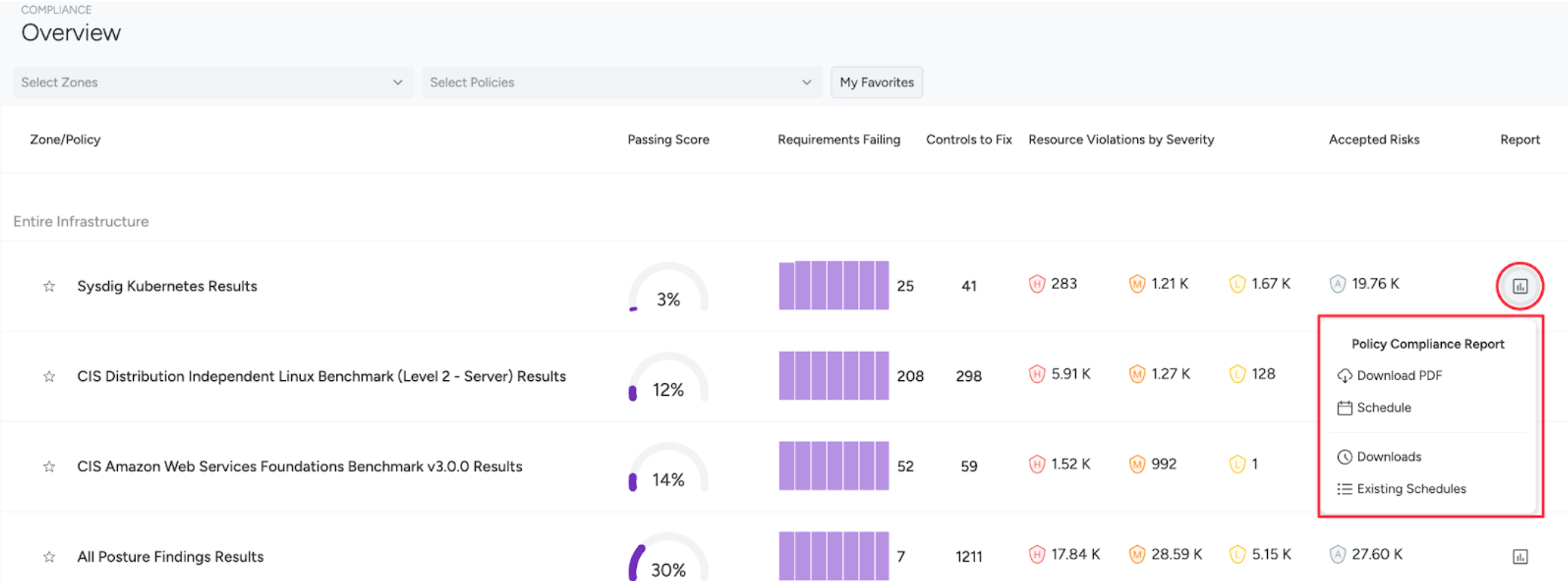
In the Secure UI, you can generate reports from:
Templates
Templates are the building blocks of reports. Templates come in different levels of customizations, and functionality:
Live view or export only:
- Live view templates let you view a sample of the data before exporting or creating a schedule.
- Export only templates provide configuration options as you create the report or schedule.
- Most templates provide some level of context within the program owner flows of what to expect, such as the “Policy Compliance Report” & “Resource Posture Report”.
Historical or point-in-time:
- Historical reports let you select timeframes either in the report editor in the live view, or when creating a schedule.
- Point-in-time reports provide only what is present within the platform at that point in time.
Export formats
- PDF - Most reports support exporting to PDF. The exceptions are for export-only templates that are built for CSV exports. When exporting to PDF, table panels are limited to the first 7 columns and the first 500 rows.
- JSON - Most reports support exporting to JSON, except for export only templates.
- CSV - Only reports that have a single table panel support CSV export.
Report Type Scope
Each report template is built around a specific type of resource and use case. The table below describes what each report type covers.
| Report Type | Category | Scope |
|---|---|---|
| Container Vulnerability Findings | Vulnerability Management | Runtime vulnerability findings for standalone (non-Kubernetes) containers, such as Docker or Podman containers. Each row represents a vulnerability finding. |
| Container Pipeline Vulnerability Findings | Vulnerability Management | Vulnerability findings for container images scanned during a CI/CD pipeline build, before the image is pushed to a registry or deployed. Each row represents a vulnerability finding. |
| Container Pipeline Vulnerability Scans | Vulnerability Management | Scan-level summary of the same CI/CD pipeline image population as Container Pipeline Vulnerability Findings. Each row represents a scanned container image. |
| ECS Workload Vulnerability Findings | Vulnerability Management | Runtime vulnerability findings for container workloads running on AWS Elastic Container Service (ECS). Each row represents a vulnerability finding. |
| ECS Workload Vulnerability Scans | Vulnerability Management | Scan-level summary of the same AWS ECS runtime population as ECS Workload Vulnerability Findings. Each row represents a scanned container image. |
| Host Vulnerability Findings | Vulnerability Management | Runtime vulnerability findings for hosts (physical or virtual machines scanned via Host Shield), outside of Kubernetes and outside container runtimes. Each row represents a vulnerability finding. |
| Runtime Host Vulnerability Scanning | Vulnerability Management | Scan-level summary of the same host population as Host Vulnerability Findings. Each row represents a host scan. |
| Kubernetes Workload Vulnerability Findings | Vulnerability Management | Runtime vulnerability findings for container workloads running on Kubernetes (pods/deployments). Each row represents a vulnerability finding. |
| Kubernetes Vulnerability Dashboard | Vulnerability Management | Visual, chart-based overview of the same Kubernetes workload vulnerability data as Kubernetes Workload Vulnerability Findings, for at-a-glance analysis rather than row-level findings. |
| Registry Vulnerability Findings | Vulnerability Management | Vulnerability findings for container images found in a registry scan — images sitting in a connected registry, before they are deployed or running. |
| Resource Posture Report (Collapsed view) | Posture | Posture/misconfiguration results for a specific policy, zone, requirement, and severity, collapsed to a summary row per resource. |
| Resource Posture Report (Per Requirement view) | Posture | Same posture data as the Collapsed view, expanded to one row per individual requirement evaluated per resource. |
| Policy Compliance Report | Compliance | Compliance-framework (benchmark) results evaluated for a specific policy and zone. |
Report History
View History lets you see and download reports that were generated either ad-hoc or on a schedule. Reports are available for 7 days from the time they’re created. After 7 days, they expire and are removed automatically.
View Report History
- Go to Reporting > Reports Manager.
- Hover over the report you want to see the history for and click the three dots towards the right. Then choose Download History.
The Report History window appears.
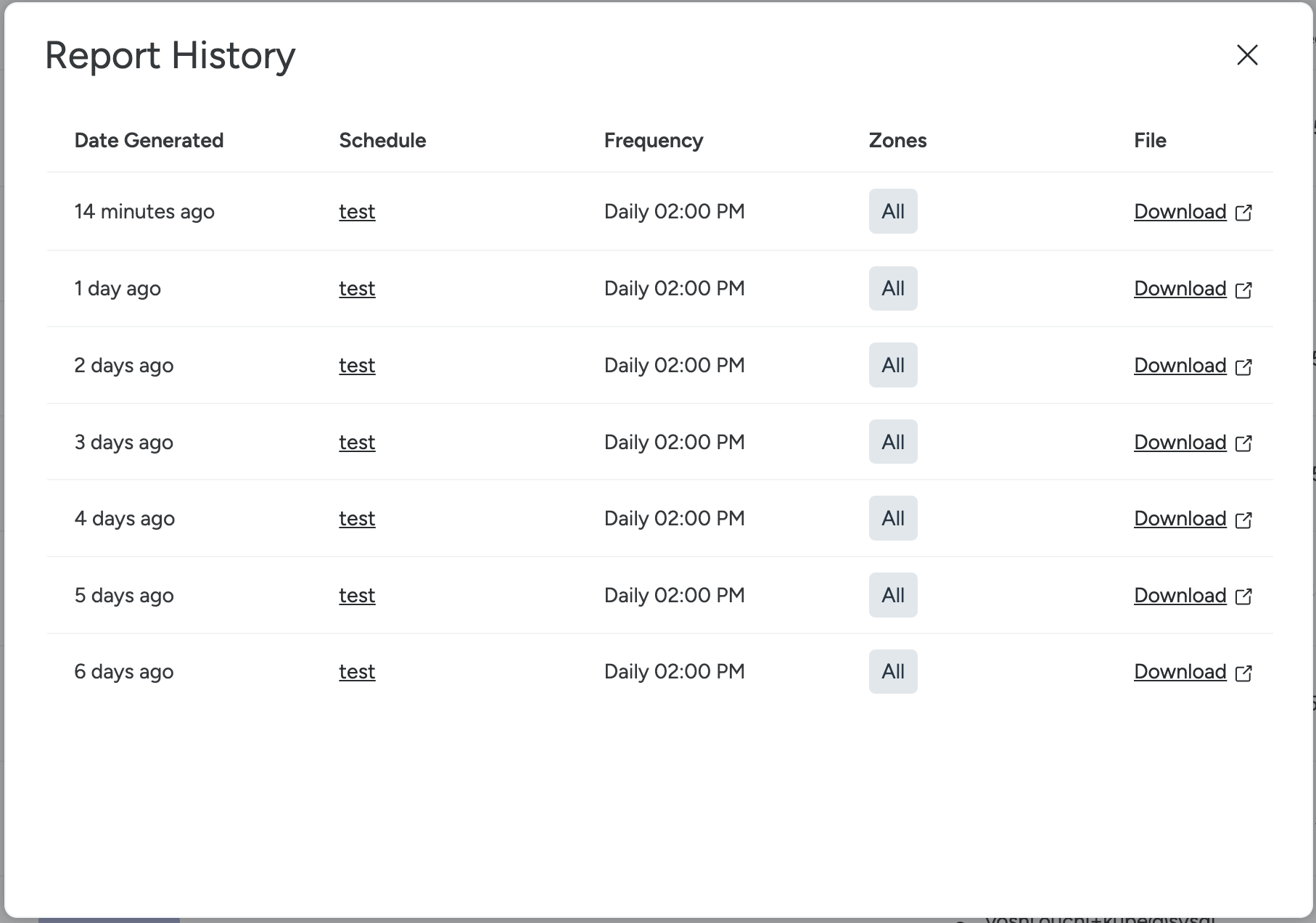
Report History columns
The Report History table shows the following details for each generated report:
- Date Generated: When the report was created.
- Schedule: The schedule name, or blank for one-off reports.
- Frequency: How often the report runs (for scheduled reports).
- Zones: Number of Zones included in the report.
- Status: Shows the status of the report.
- File: Download link for the report.
- The Date Generated column shows relative time (for example, about 7 hours ago or 6 days ago).
- Reports are available for 7 days. On the 8th day, they expire exactly at the start of the day.
Migrate from Vulnerability Management Reports
Reporting builds upon and replaces the Vulnerability Management (VM) Reporting interface.
The legacy VM report types correspond to the following reporting templates.
| VM Report Type | Template (NEW) |
|---|---|
| Image Pipeline | Pipeline Vulnerability Findings |
| Image Registry | Registry Vulnerability Findings |
| Runtime Workloads | Kubernetes Workload Vulnerability Findings |
| Runtime Hosts | Host Vulnerability Findings |
| Runtime Container | Container Vulnerability Findings |
Migrating Managed & Custom Reports to Reports & Templates
Prior to May 28, 2025, you could:
- Use managed reports to generate ad-hoc reports or schedule exports without needing to create custom reports you would have to manage
- Copy managed reports to edit the queries within the panels as a custom report.
As of May 28, 2025:
- The distinction between managed and custom reports has been abolished.
- Managed reports have been converted to templates. You can generate reports from these templates.
- All managed reports that have a schedule associated with it, will be converted to a report.
- All custom reports will just be considered a report.
For more details, see the Release Announcement.
