Resource Ownership
The Resource Ownership feature allows Sysdig to read metadata (labels or tags) from your infrastructure to automatically identify who is responsible for a specific resource and who should be assigned any resulting tickets.
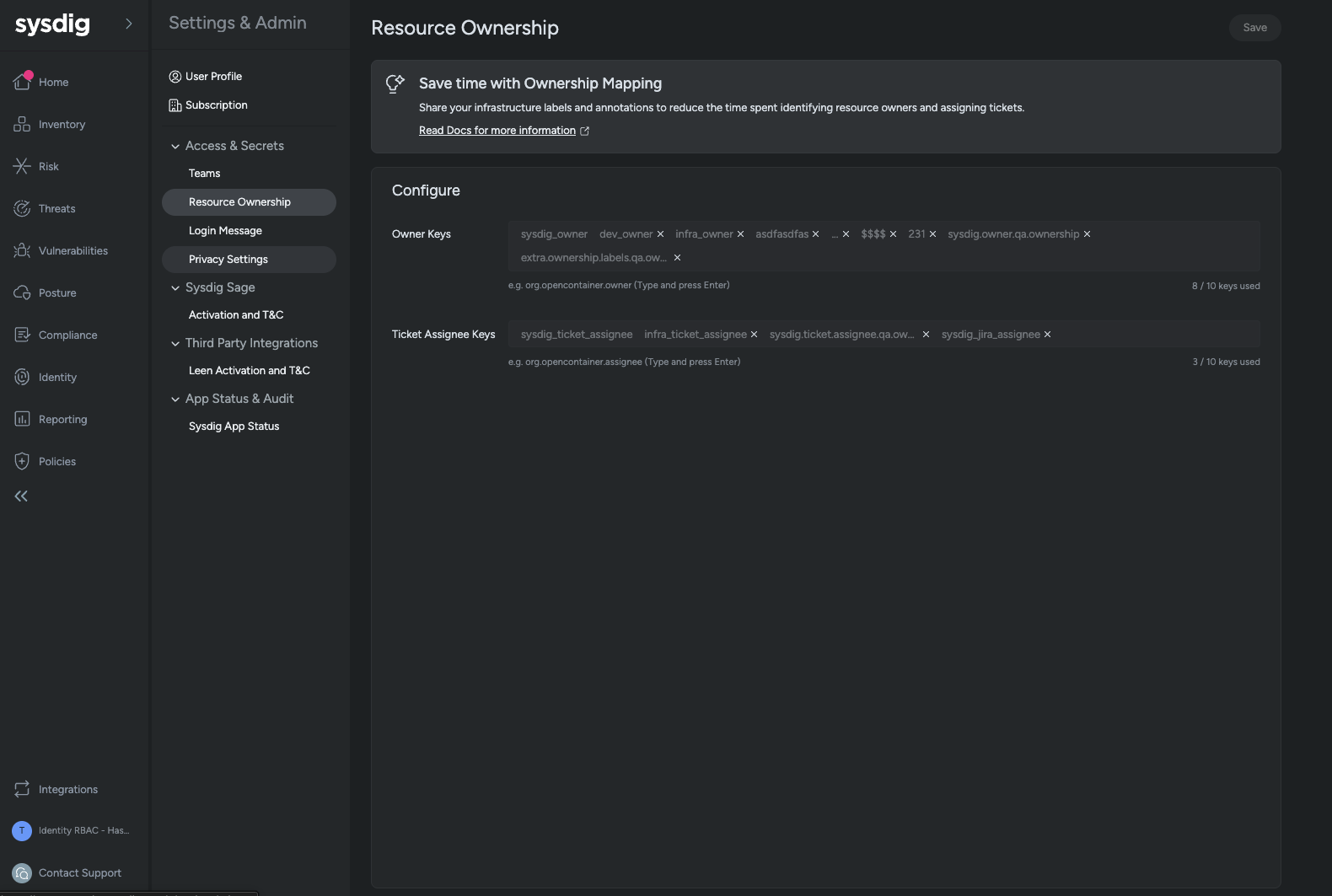
1. Add Owner Keys
Owner keys are used to identify the person or team that owns a resource. Sysdig scans your cloud tags or Kubernetes labels for these specific keys to determine ownership.
- Navigate to the Settings and Admin section and locate the Resource Ownership section.
- Locate the Owner Keys field: This is the first input box under the Configure section.
- Add a Key: Type the exact label or tag key you use in your environment (for example,
dept\_ownerorbusiness\_unit).- By default
sysdig\_ownerwill be searched for if you choose to add this label or tag to your resources.
- By default
- Finalize: Press enter after typing each key to turn it into a tag.
- Limit: You can specify up to 10 different keys.
Add Ticket Assignee Keys
Ticket Assignee keys are used to identify the specific individual or email address that should be assigned a ticket in your integrated ticketing system (like Jira).
- Navigate to the Settings and Admin section and locate the Resource Ownership section.
- Locate the Ticket Assignee Keys field: This is the second input box in the Configure section.
- Add a Key: Type the key that maps to your ticketing assignee metadata.
Sysdig\_ticket\_assigneewill be searched for by default if you choose to add this label or tag to your resources.- Sysdig recommends that you specify a distinct email address that matches a user within your Jira organization.
- Finalize: Save the tag.
- Limit: You have a maximum of 10 slots.
Once you add or remove keys, click the Save button in the top right corner of the screen to apply your changes.
