Privacy Settings
Opting-out of Data Analytics may prevent the usage of certain features, such as Okta ML, and the “Chat with Us” button in the left navigation bar.
Review Privacy Settings
To review and modify your privacy settings:
From the user menu, navigate to Settings > Privacy Settings.
Toggle the sliders for the options listed below. Administrators can change data settings globally, while individual users can adjust the data being sent from their accounts.
Global User Settings
Sign in as an administrator to access these settings. You can enable sending Usage Data and Crash Reporting from all users back to Sysdig.
You can individually override this by opting out.
Individual User Settings
Non-admin users can access these settings. If administrators have opted in through the global settings, individuals may opt out of sharing their own data using this option. You can enable or disable the sending of Usage Data and Crash Reporting.
Disabling Usage Data may hinder the Chat with Us button from reaching Customer Success. See Sysdig Support.
Customer Data Analytics (Secure Only)
Sign in as an administrator to enable and disable the transfer of Data Analytics.
Note that this data is used for Machine Learning (ML) policies, such as Okta ML, AWS ML, and Workload ML. Opting out will prevent the usage of such policies.
This option is only available in Sysdig Secure.
Sysdig Sage Message Collection
Sysdig may use Sysdig Sage messages and conversation data. Use the Sysdig Sage Messages toggle to enable or disable this collection on your account.
Customer Data Access
Sysdig Support may need to access your environment to troubleshoot a case. Customer Data Access lets you control how, and for how long, that access is granted. It is disabled by default; opt in using either or both of the options below.
Sysdig Support Account
Allow Sysdig Support to access your data using a dedicated account provisioned in your environment.
Turn on Allow Sysdig Support Account. Sysdig creates an account named Sysdig Support and adds it to your default team with View Only access. You can change the account’s role, remove it, or select View User to see its details at any time.
Allow User Temporary Access
Approve Sysdig Support access for a fixed window, without creating a standing support account.
- Select Add Time.
- Select a duration from the dropdown, then select Save. The time remaining counts down until the access expires. To extend access, select a duration and select Save again. Access can be extended up to a maximum of 30 days in total.
Access ends automatically when the timer runs out, or select Revoke Access to end it early.
Hard Opt-Out Option
Contact Sysdig Support to opt out of data sharing in a way that can’t be overridden even by admins, if needed to comply with particular enterprise security standards.
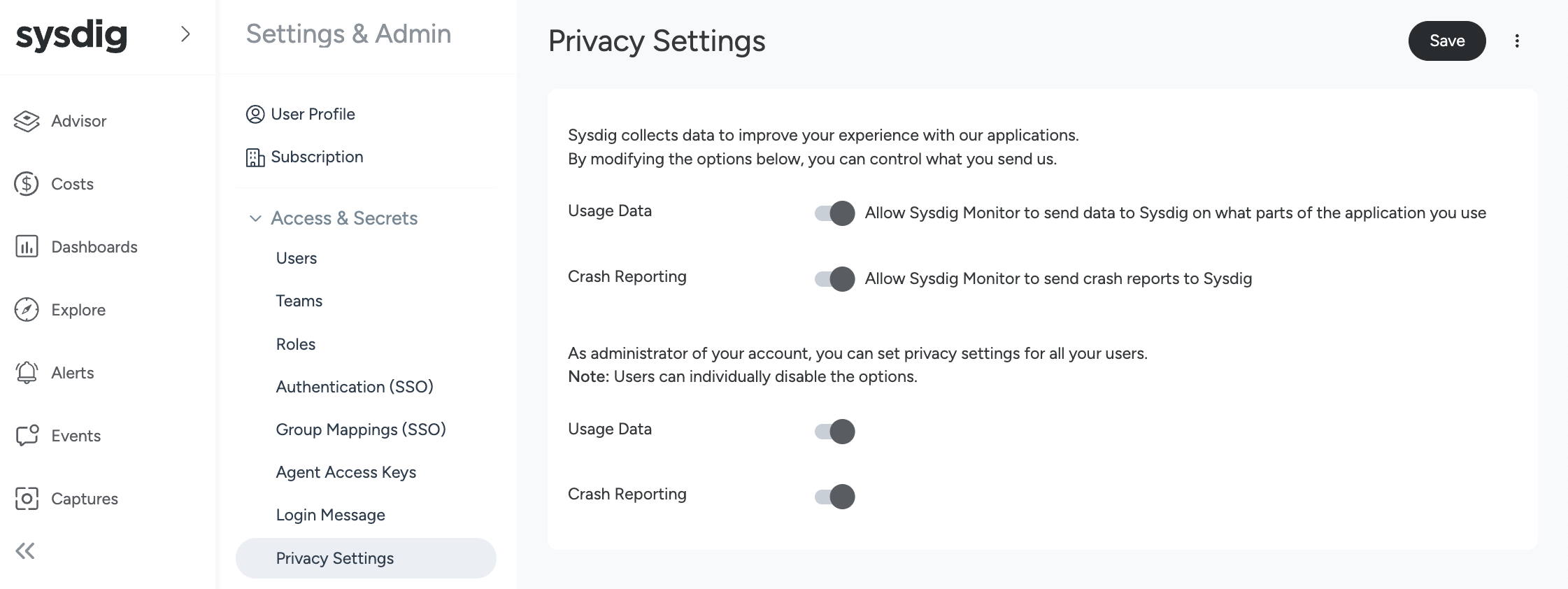
If you are logged in to Sysdig Monitor as an administrator, you can see two pairs of sliders. The first pair are your individual user settings, and the second are the global settings.
